 Leaf Calendar
Your calendar
Leaf Calendar’s main window has four parts. Here’s what each one does.
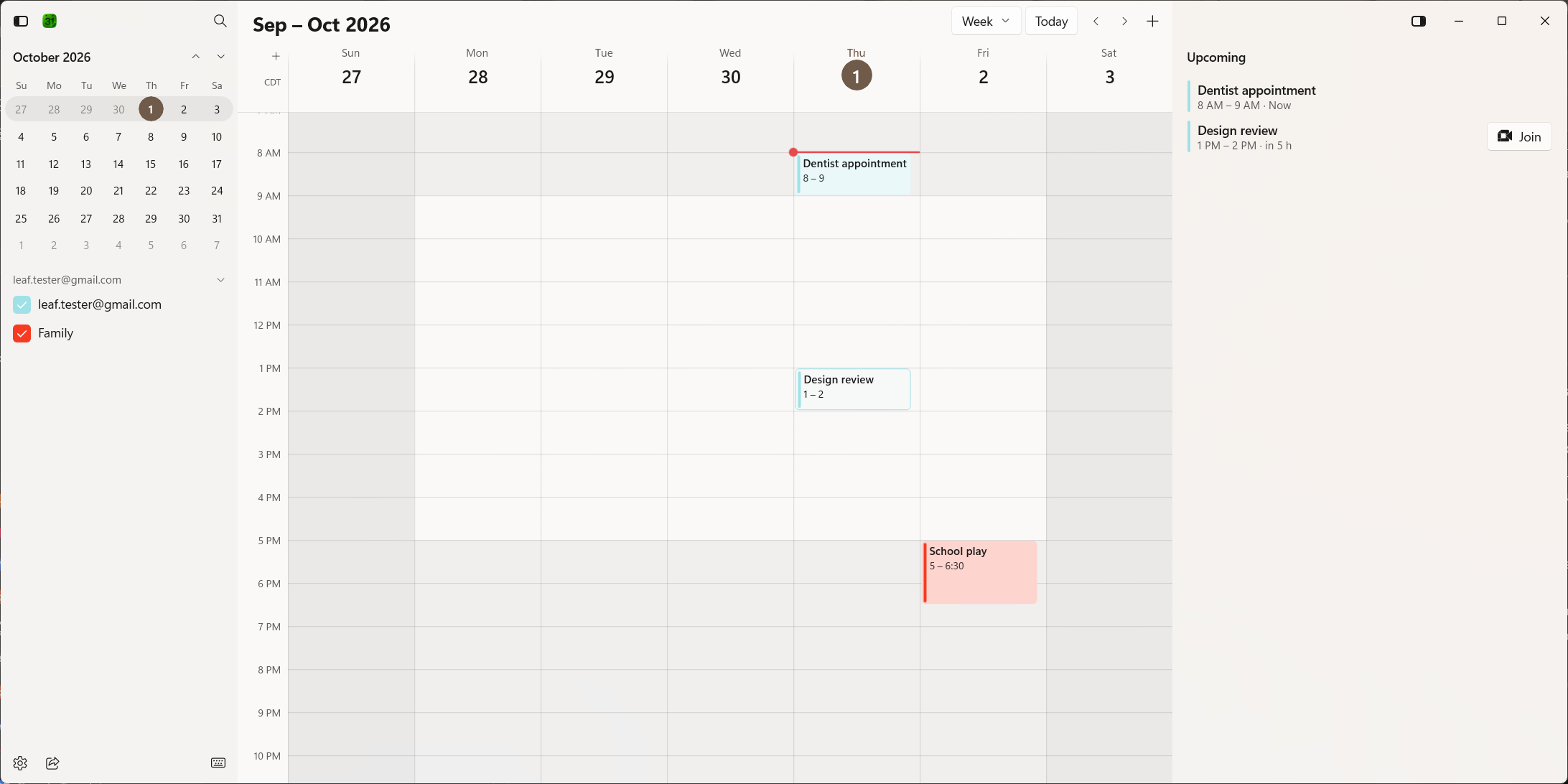
The title bar
From left to right:
- Sidebar button (top-left corner) shows or hides the sidebar.
- Back shows up when there’s somewhere to go back to, like after opening a search result.
- Search (the magnifying glass) opens the command menu.
- The period on screen, like “Sep – Oct 2026”.
- View picker switches between Day, Week, Month, and your custom number of days.
- Today jumps back to today.
- Previous and Next move back or ahead one day, week, or month, depending on the view.
- Create event (the plus) starts a new event.
- Sync status only shows when something needs your attention: changes waiting to send, no connection, or a change to review. Hover over it for details. See Offline and sync.
- Details panel shows or hides the right panel.
The window’s title is the date range on screen, so the taskbar always tells you where you are.
The sidebar
The mini month, your accounts and their calendars, and buttons for search, share availability, keyboard shortcuts, and Settings. See Sidebar and calendars.
The calendar
The day, week, or month you’re looking at. Drag on it to create an event, click an event to see its details, and drag events to move them. See Views and navigation and Events.
The details panel
The right side of the window:
- With nothing selected, it lists your upcoming meetings for the next few hours, each with a Join button when it has a meeting link. Change how far ahead it looks in Settings › General › Upcoming meetings.
- With an event selected, it shows the event’s details.
- While you create or edit an event, it holds the event editor.
- While you share availability, it holds the times you’re sharing.
Press Esc to clear the selection or close the panel’s current view.