 Leaf Calendar
Sign in for the first time
The first time you open Leaf Calendar, a small setup window walks you through connecting Google. The line-shaped dots at the bottom show which step you’re on.
1. Welcome
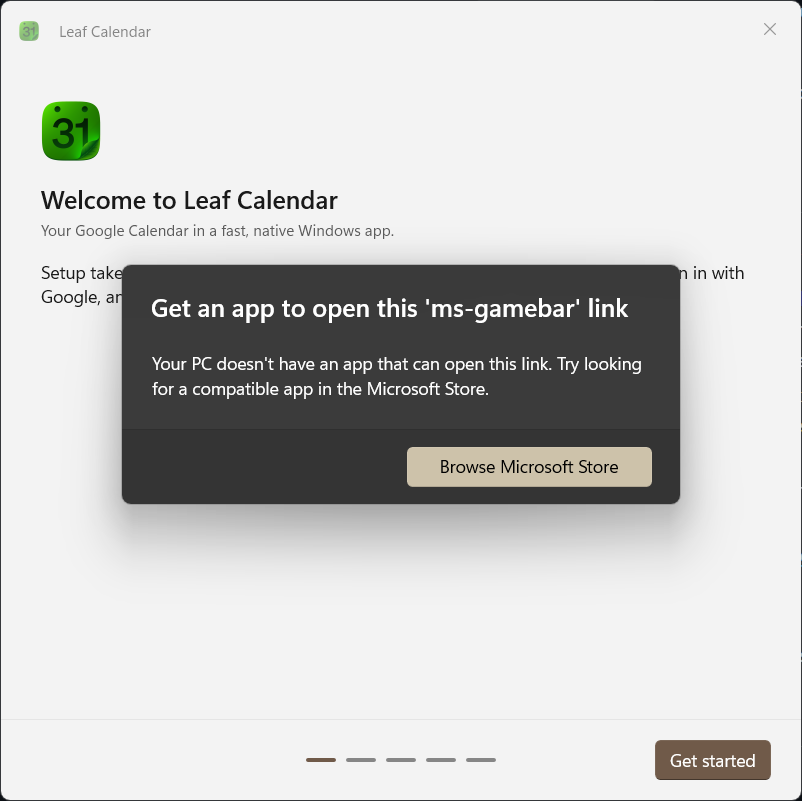
Click Get started.
2. Connect your Google Cloud client
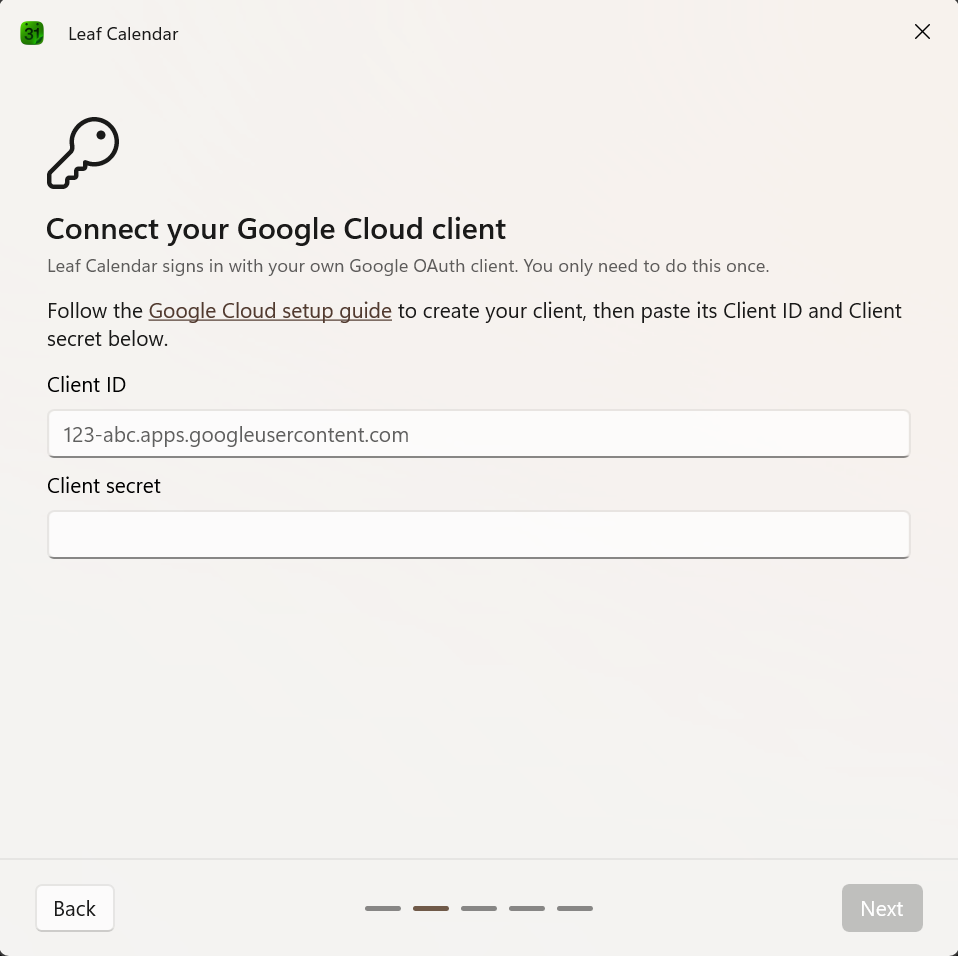
Paste the Client ID and Client secret from your OAuth client, then click Next. Haven’t made one yet? Follow the Google Cloud setup guide first, and don’t forget to add yourself as a test user.
Leaf Calendar keeps your Client ID and Client secret encrypted on your PC. You only enter them once.
3. Sign in with Google
Click Sign in with Google. Your browser opens Google’s sign-in page.
- Pick the Google account you added as a test user.
- If Google says it hasn’t verified this app, click Advanced, then Go to (your app name). It’s your own app, so this is safe.
- Allow Leaf Calendar to see and edit your calendars and to see your contacts.
- When the browser says you can close the tab, close it and go back to Leaf Calendar. The page also offers an Open Leaf Calendar link that brings the app to the front.
If sign-in doesn’t finish, Leaf Calendar shows Try again. See troubleshooting if Google shows an error.
4. Syncing your calendars
Leaf Calendar downloads your calendars and events. You’ll see how many it has found so far. This can take a minute for a busy calendar, and it only happens once. After that, Leaf Calendar only fetches what changed.
5. Schedule with Cal.com (optional)
If you use Cal.com, you can connect it here so you can share your free times as booking links. Click Skip if you don’t use Cal.com. You can always set it up later in Settings › Accounts. See Cal.com booking links for how to set it up.
6. You’re all set
Click Open Leaf Calendar. The setup window closes and your calendar opens.
If you close the setup window before you finish, Leaf Calendar asks if you want to leave setup. Leaving without signing in to any account closes Leaf Calendar. Open it again whenever you’re ready to pick up where you left off.
Adding more Google accounts
Leaf Calendar can show as many Google accounts as you like, side by side. Go to Settings › Accounts and click Add Google account. Each account you add must also be a test user on your OAuth client (unless you’ve published it).