 Leaf Calendar
Notifications
Leaf Calendar uses real Windows notifications, so they show up in Notification Center and follow Windows’ Do not disturb and Focus settings.
Reminders only arrive while Leaf Calendar is running. That’s why it starts with Windows and waits in the tray. Keep Settings › General › Start with Windows on.
Reminders
At each reminder time, a notification shows the event’s title, time, and location, with:
- Join, when the event has a meeting link
- Snooze
- Dismiss
Leaf Calendar uses the event’s own reminders, or its calendar’s default reminders from Google. All-day events only remind you when they have reminders of their own.
“Join now”
When one of your meetings with a link starts, a Join now notification appears with a Join button. It’s only for your own meetings, not a coworker’s meetings on a calendar you can see. It goes away if the meeting ends, moves, gets declined, or is deleted.
Notifications that stay on screen
With Persistent “Join now” notification on, two checkboxes decide which notifications stay on screen until you click Join, Snooze, or Dismiss:
- Stay persistent for meetings: events with a meeting link (on until you change it).
- Stay persistent for reminders: events with nobody but you on them.
Everything else slides into Notification Center after a few seconds.
Invitations
When someone invites you, or the organizer changes a meeting you’re invited to, a notification shows it with Yes, No, and Maybe. Your answer is emailed to the organizer. For a repeating meeting, your answer covers the whole series.
Other notifications
- A change needs your review. Something you changed was also changed on Google. See conflicts.
- Sign in again. Google signed one of your accounts out. See the 7-day sign-out.
- Booking found. Someone booked one of your Cal.com times.
- No meeting to join. You pressed the join shortcut and there was nothing to join.
Missed while you were away
If your PC was asleep or Leaf Calendar wasn’t running, you’ll still get the latest alert for each meeting that hasn’t ended yet. Alerts for meetings that are already over are skipped.
Notification settings
Turn each kind on or off in Settings › Notifications:
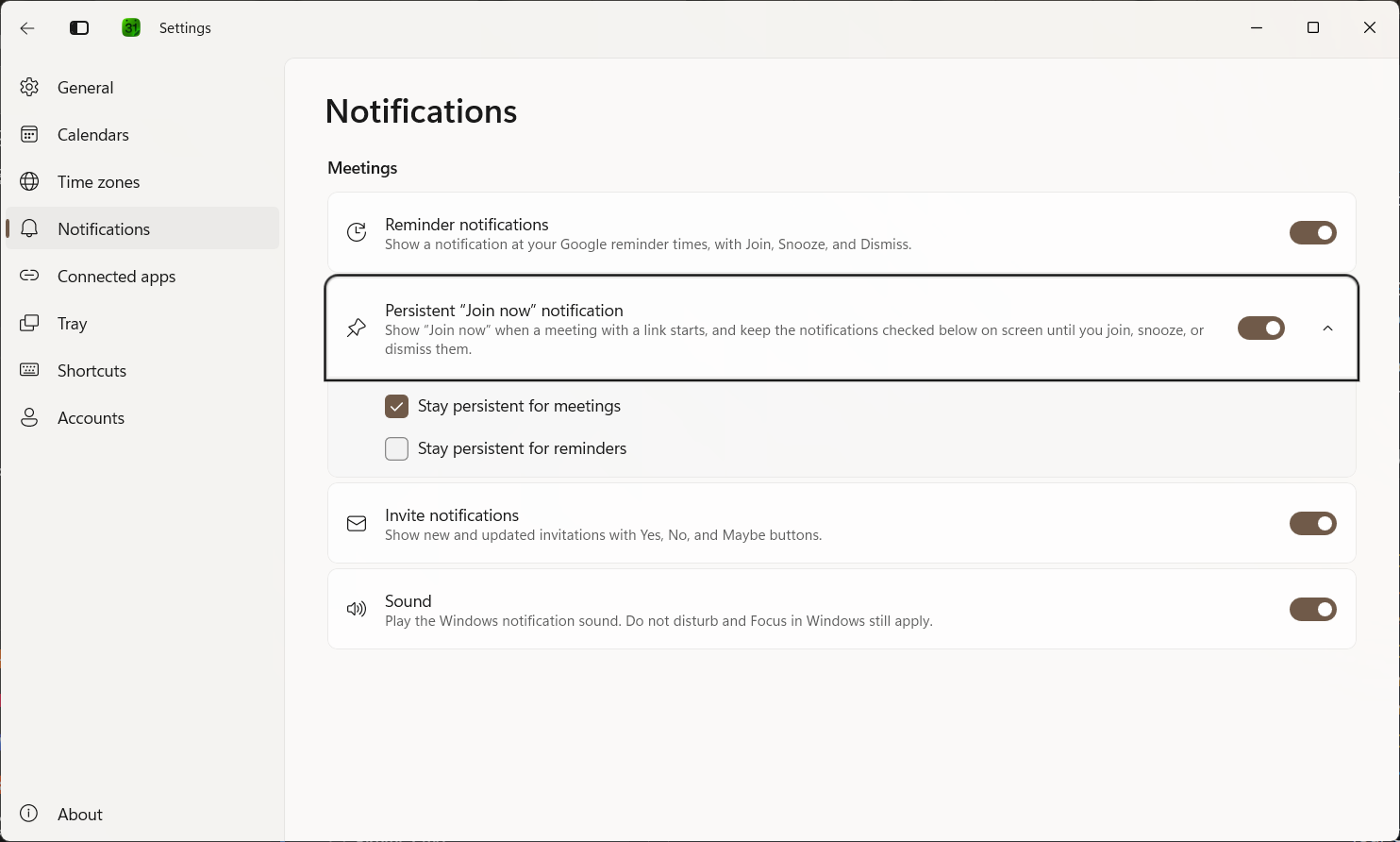
- Reminder notifications
- Persistent “Join now” notification, with its two checkboxes
- Invite notifications
- Booking notifications (only shows once you’re signed in to Cal.com)
- Sound