 Leaf Calendar
Joining meetings
Leaf Calendar gets you into the right meeting with the right Google account, from anywhere.
The join shortcut
Press Ctrl+Alt+J anywhere in Windows. Leaf Calendar picks, in this order:
- The next of your meetings that starts within 10 minutes.
- If there isn’t one, the meeting you’re in right now.
- If there isn’t one, the next meeting with a link coming up in the details panel’s upcoming list (Settings › General › Upcoming meetings).
If there’s nothing to join, a notification says “No meeting to join”.
Other ways to join
- Join in the details panel, the tray flyout, or a notification.
- Join next meeting in the tray menu (meetings starting in the next 10 minutes, or in progress).
Ctrl+Jin the main window joins the selected meeting, or your next one.Vopens the selected meeting’s link in your browser.
The right Google account
If you have several Google accounts, Google Meet normally opens in whichever one your browser picks. Leaf Calendar tells Meet which of your accounts the meeting belongs to, so you join as the right person.
Zoom, Teams, Webex, and other links open as they are, in their own apps when you have them installed.
Changing the shortcuts
Go to Settings › Shortcuts and click the shortcut to change it. Press the new keys. A shortcut has to start with the Windows key, Ctrl, or Alt, and end with a letter, a number, or an F key. Reset puts the default back, and Clear turns the shortcut off. If another app already uses those keys, Leaf Calendar tells you and asks for another.
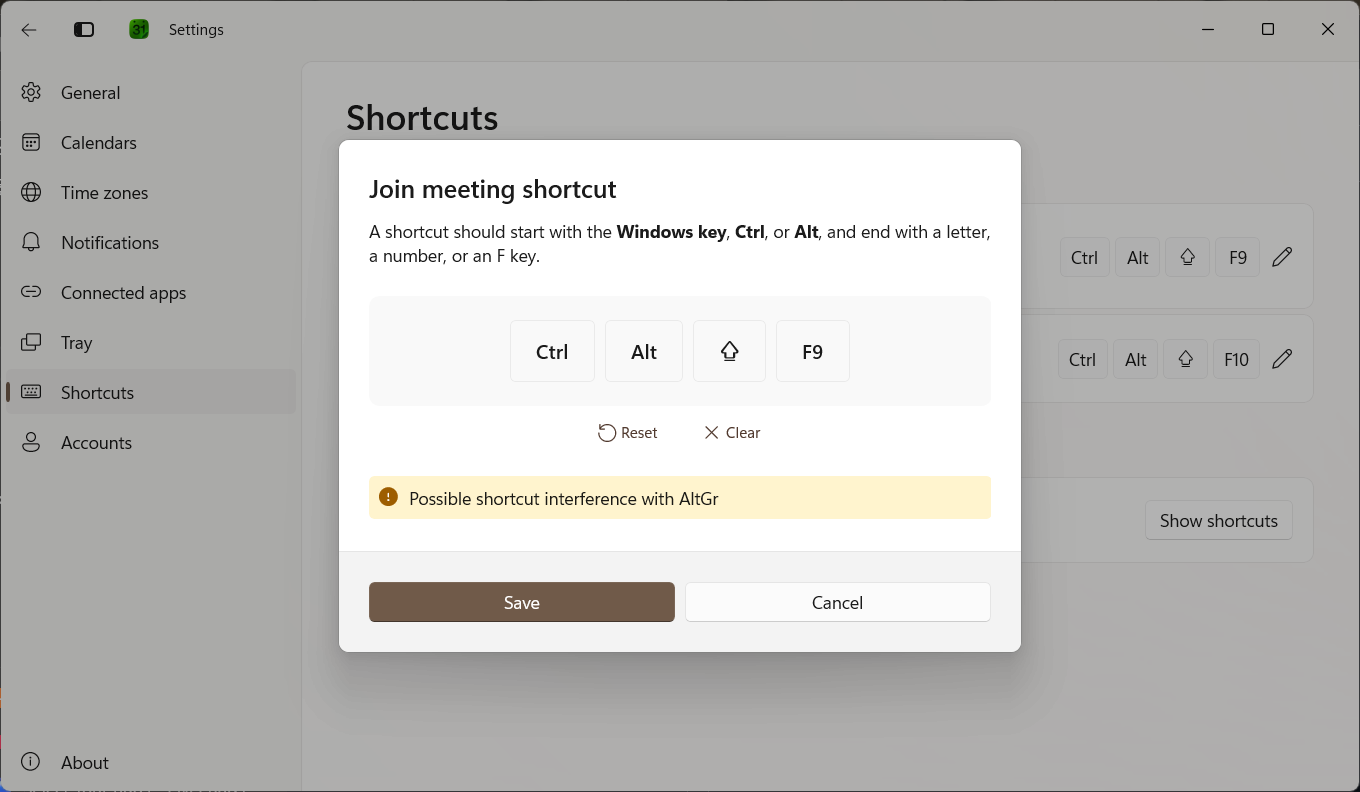
On keyboards with an AltGr key (common in Europe),
Ctrl+Altis the same as AltGr, so the default shortcuts take over AltGr+J and AltGr+K. If you use those keys to type, change the shortcuts in Settings › Shortcuts.