 Leaf Calendar
Command menu and search
The command menu is the fastest way to do almost anything in Leaf Calendar. Search your events, jump to a date, or run any action, all without leaving the keyboard.
Opening it
- Press
Ctrl+K. - Press
Ctrl+For/to search. - Click the search icon at the top of the sidebar.
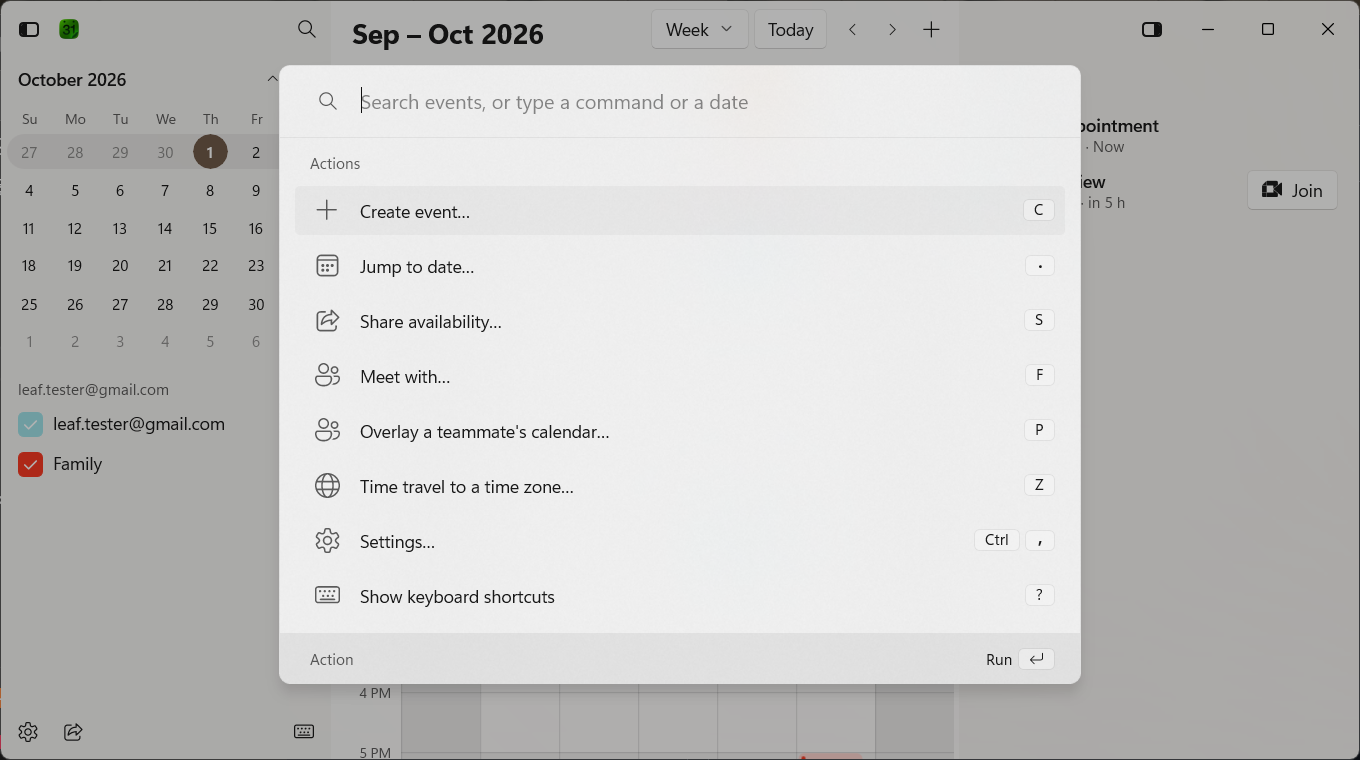
Type to filter, use ↑ and ↓ to pick a result, and press Enter to run it. Esc closes the menu.
Searching events
Type part of an event’s title, description, guest, or location. Leaf Calendar searches everything on your PC, past and future, so it works offline too.
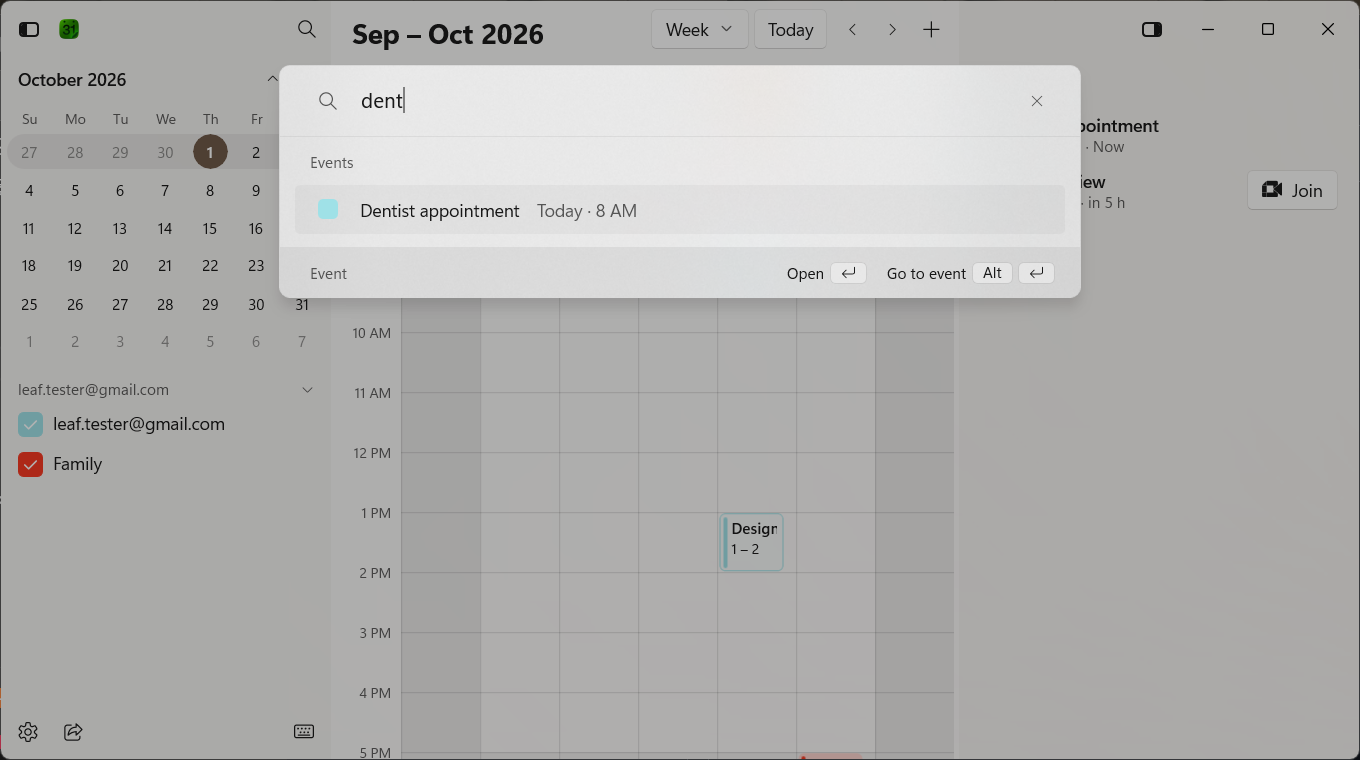
Enteropens the event’s details.Alt+Enterjumps the calendar to the event.- For a repeating event, the result is its next one.
Going to a date
Type a date in plain words, and the menu offers to go there:
- “oct 15”
- “next friday”
- “in 2 weeks”, “two weeks from now”
- “3 days ago”
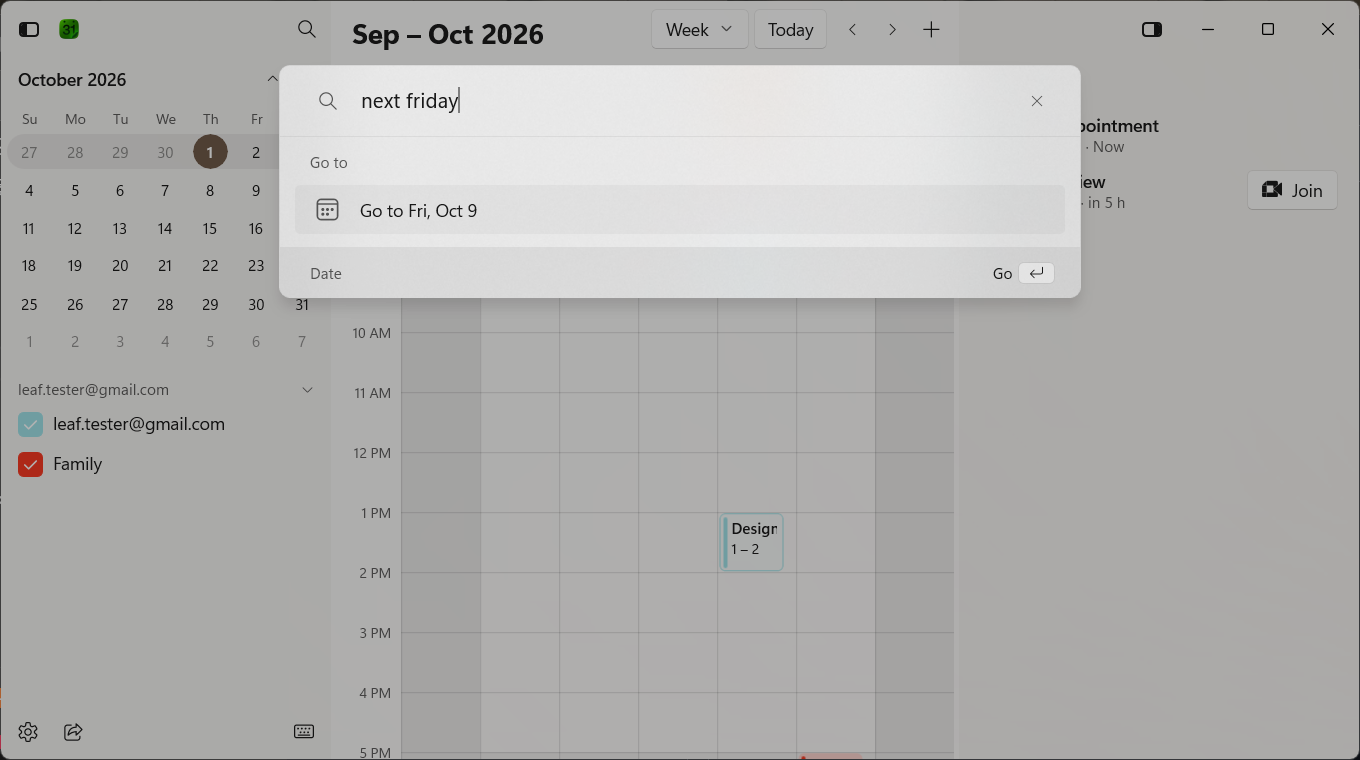
Press . on the calendar to open the menu ready for a date (Jump to date).
Running actions
Type what you want to do. Some of the things you can run:
- Create event (type a title, then pick Create event “…”)
- Go to today, switch views (day, week, month)
- Join your next meeting
- Overlay a teammate’s calendar, or Meet with people
- Time travel to another time zone
- Share availability
- Sync now
- Switch between light and dark, show or hide weekends and declined events
- Open any page of Settings
- Show keyboard shortcuts
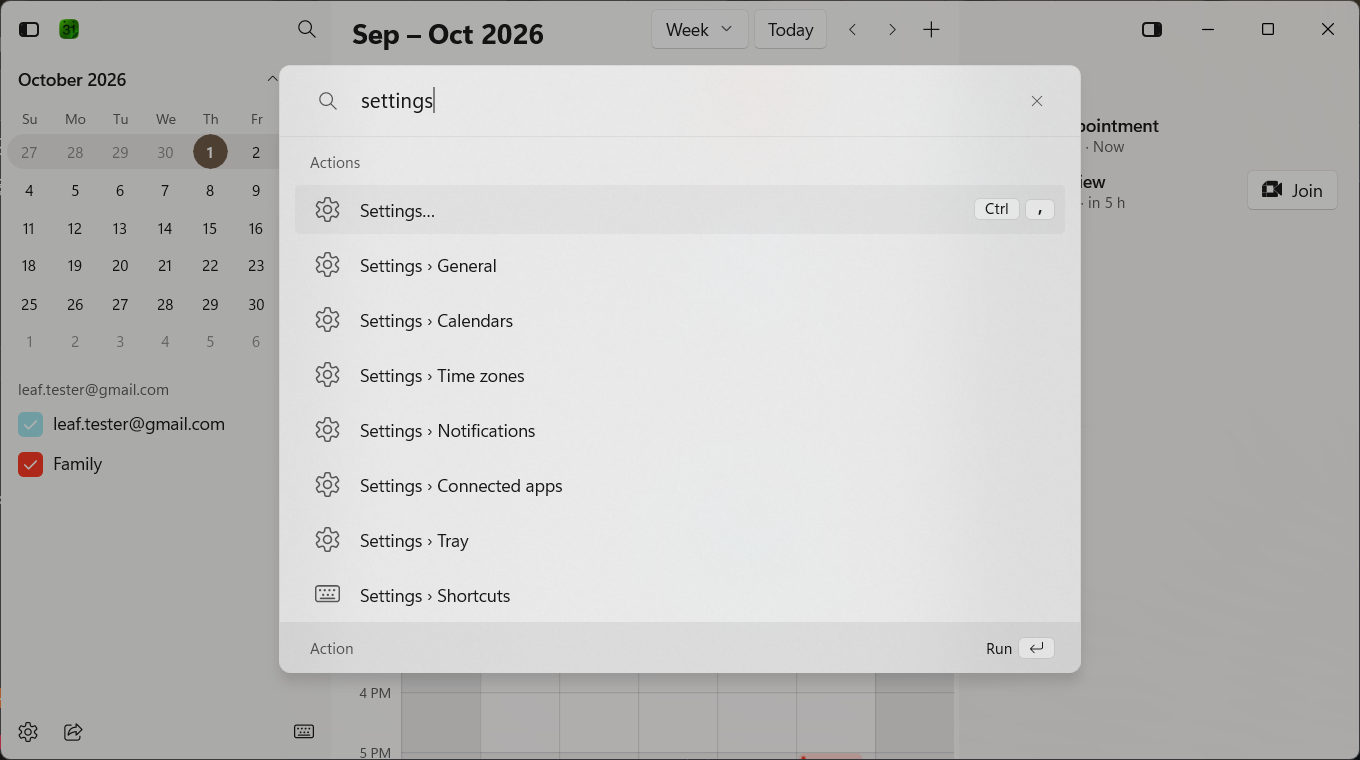
If nothing matches, the menu says “No events, actions, or dates match.”