 Leaf Calendar
Create events
There are five ways to start a new event. Each one opens the event editor in the right panel.
- Drag on the calendar from the start time to the end time. Drag across several days to make one event that spans them.
- Double-click a time on the calendar.
- Click the plus (Create event) in the title bar.
- Press
Cto create a one-hour event at the time you clicked, or at the next quarter hour. - Type it in the command menu. Press
Ctrl+K, type a title, and pick Create event “…”.
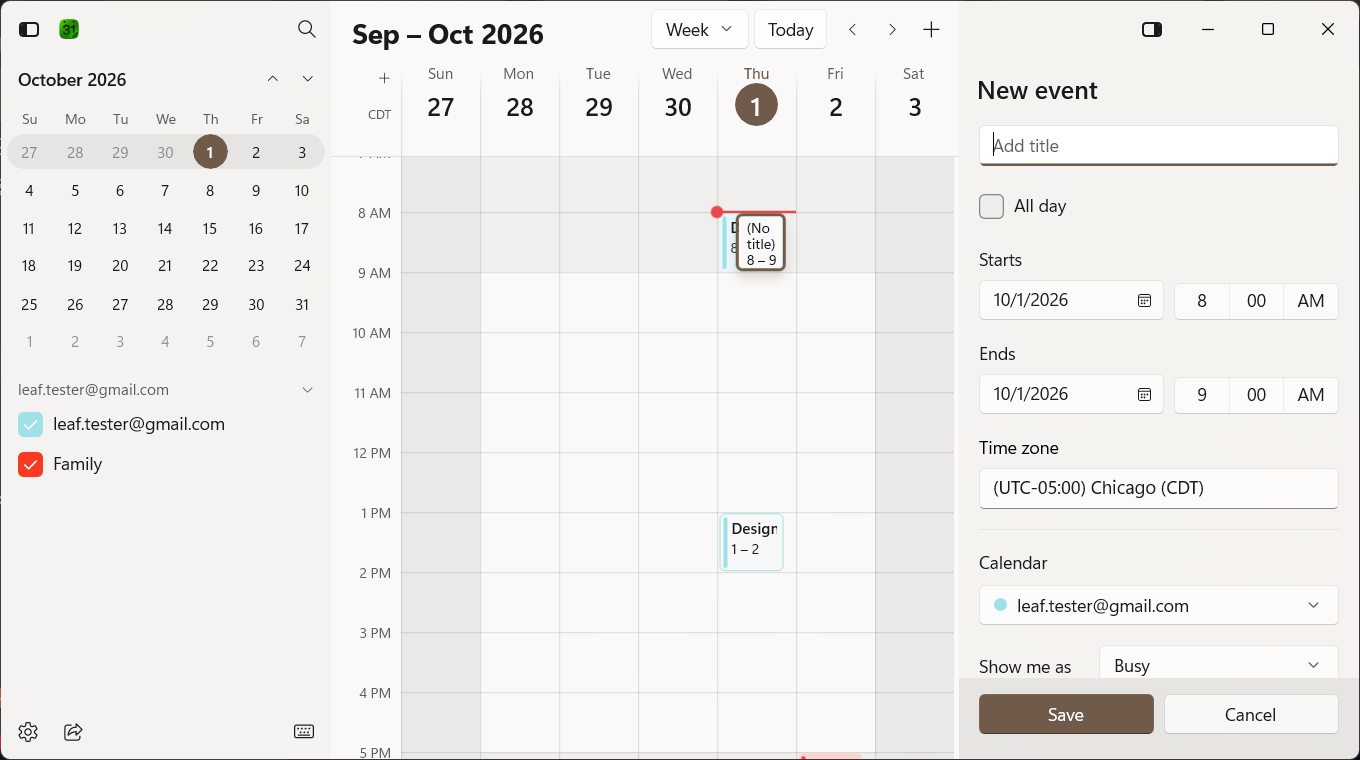
Type a title, set anything else you need, then save:
| To | Do this |
|---|---|
| Save and email the guests | Click Save or press Ctrl+Enter |
| Save without emailing anyone | Click Save without emailing or press Ctrl+Shift+Enter |
| Throw the new event away | Click Cancel or press Esc |
New events go to your default calendar. Pick a different one in the editor’s Calendar box, or change the default in Settings › Accounts › Default calendar.
Handy details
- Birthdays. A title with “birthday” in it becomes a yearly all-day event.
- Zero-minute events are fine, for things like reminders to yourself.
- Google Meet. Click Add Google Meet in the editor, or turn on Google Meet by default for an account in Settings › Accounts so every new event gets a link.
- Offline? No problem. The event shows right away and is sent to Google once you’re back online. See Offline and sync.
- From the tray. Click New event… in the tray flyout or menu.