 Leaf Calendar
Settings
Open Settings with the gear at the bottom of the sidebar, Ctrl+,, Settings… in the tray menu, or by typing “settings” in the command menu. Settings opens in place of the calendar. Click Back in the title bar to return.
Every change saves as soon as you make it.
General
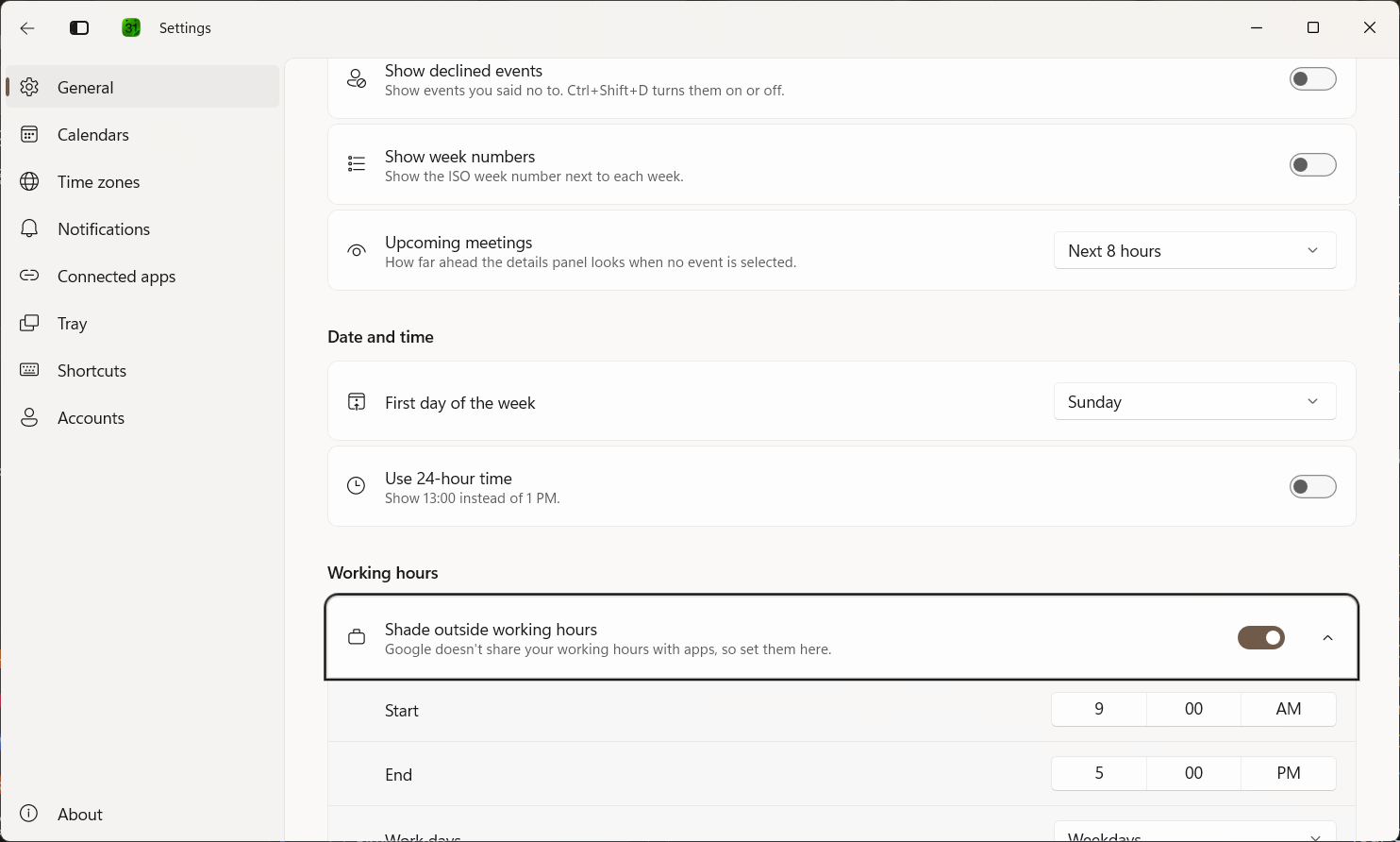
Appearance
- App theme: Use Windows setting, Light, or Dark.
Ctrl+Shift+Lswitches between light and dark. - Expand the all-day section: show every all-day event when Leaf Calendar opens, not just the first few.
Calendar view
- Days in the custom view: from 1 to 31 days.
- Hour height: how tall each hour is in the day and week views.
Ctrl+Plus,Ctrl+Minus, andCtrl+0change it too. - Show weekends:
Ctrl+Shift+Eturns them on or off. - Show declined events:
Ctrl+Shift+Dturns them on or off. - Show week numbers: the ISO week number next to each week.
- Upcoming meetings: how far ahead the details panel looks when no event is selected.
Date and time
- First day of the week: Sunday, Monday, or Saturday.
- Use 24-hour time: show 13:00 instead of 1 PM.
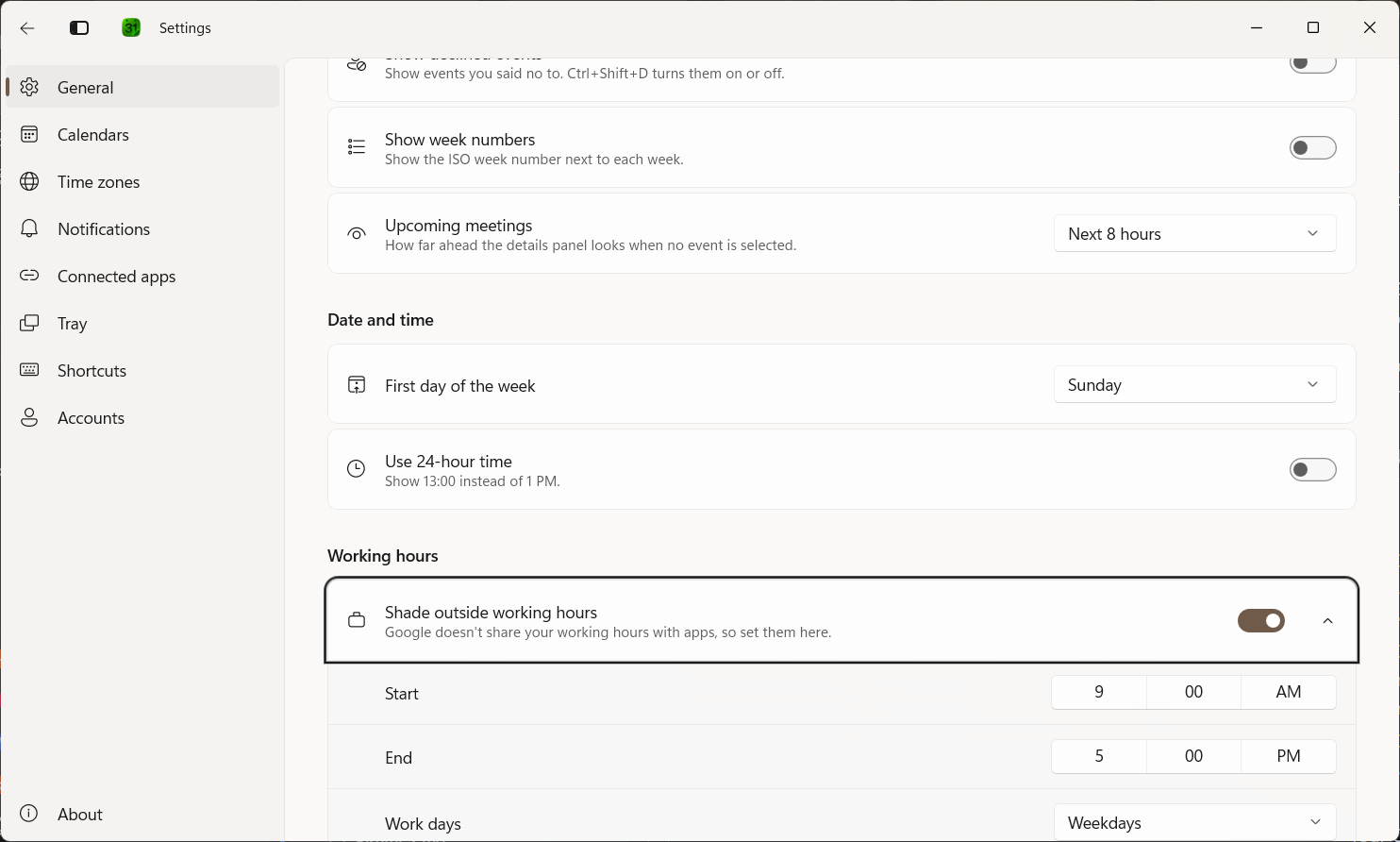
Working hours
- Shade outside working hours, with the Start, End, and Work days. Google doesn’t share your working hours with apps, so you set them here.
Locations
- Open locations in: Google Maps or Bing Maps.
Startup
- Start with Windows: so reminders arrive on time.
- Start minimized: wait in the tray instead of opening the window when you sign in to Windows.
Calendars
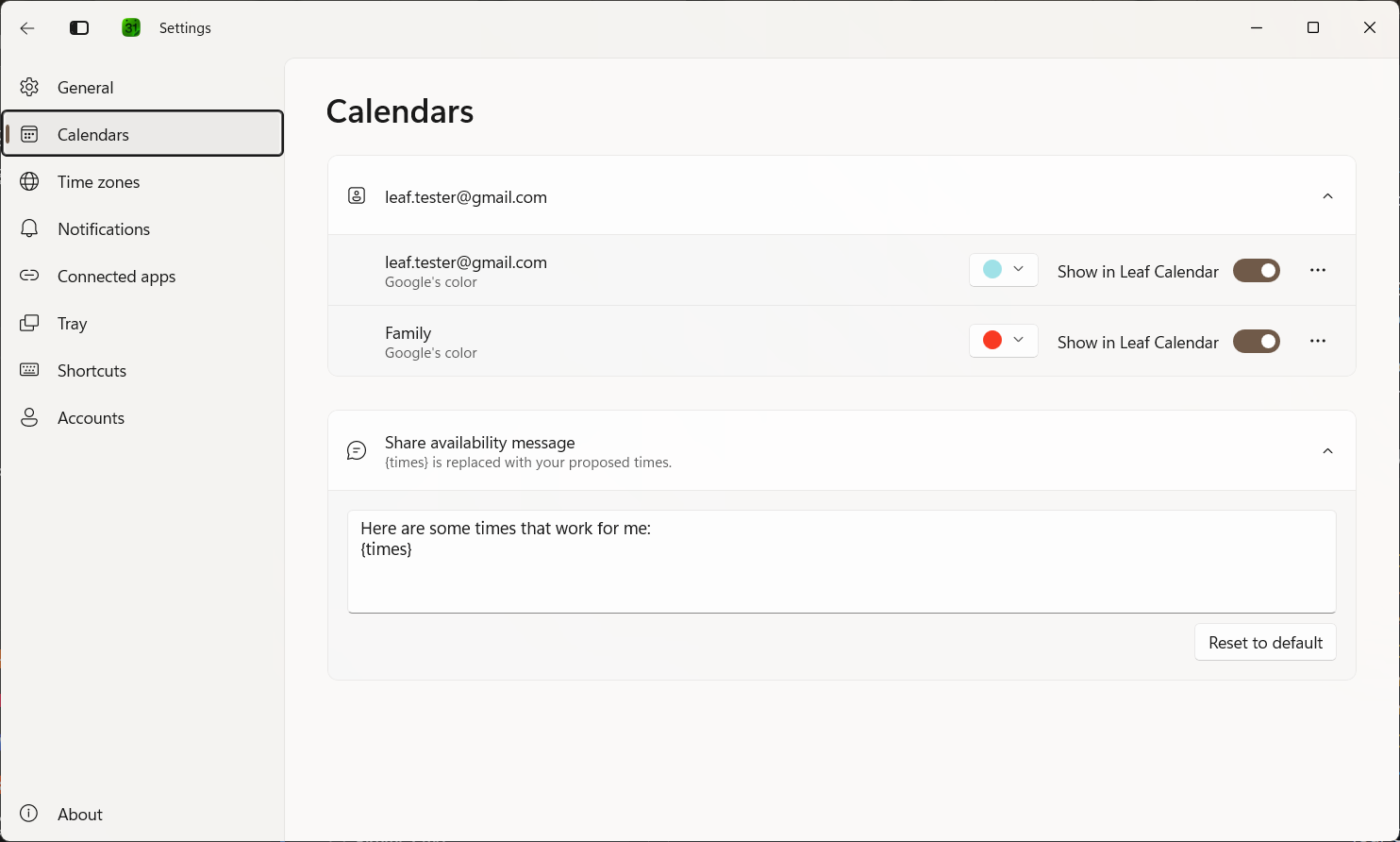
Your calendars, grouped by account. For each one:
- Show in Leaf Calendar, the same as the checkbox in the sidebar.
- Change color: pick a swatch, a Custom color, or Use Google’s color.
- More options:
- Rename…: a name only you see (the same as Rename… in the sidebar).
- Default reminders…: Google uses these for new events on this calendar.
- Move up and Move down: the order calendars are listed in.
Share availability message is the text your shared times are wrapped in. {times} is replaced with your proposed times. Reset to default puts Leaf Calendar’s message back.
Scheduling
Only shows once you’re signed in to Cal.com.
- Default link: the Cal.com link each new share starts with.
- Booking link note: a line added after your booking links when you copy them.
Time zones
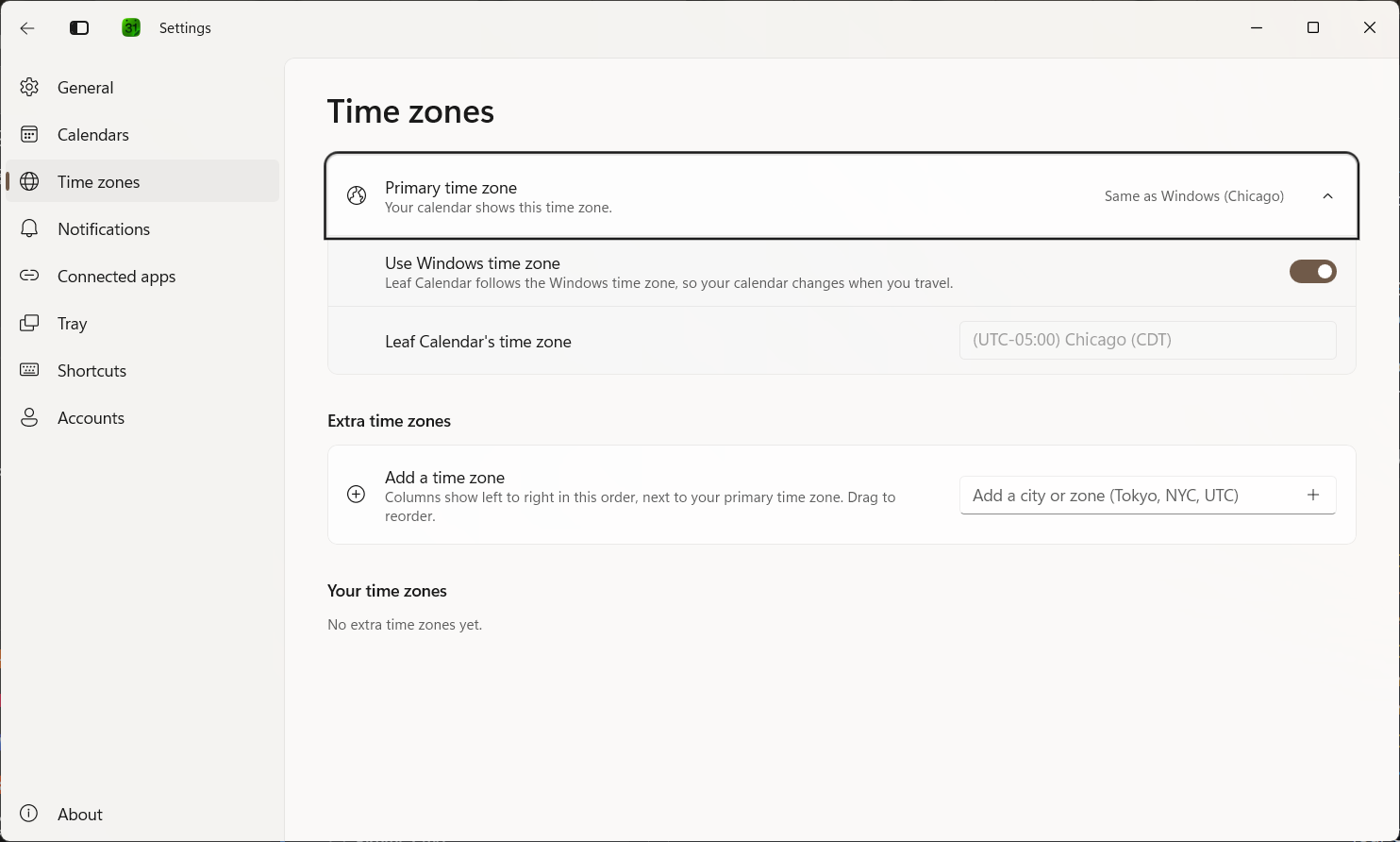
- Primary time zone: the zone your calendar shows. Turn on Use Windows time zone to follow Windows, or pick your own.
- Ask when the Windows time zone changes: Leaf Calendar offers to switch when you travel.
- Extra time zones: up to 4 extra columns of hours, each with your own label. See Time zones.
Notifications
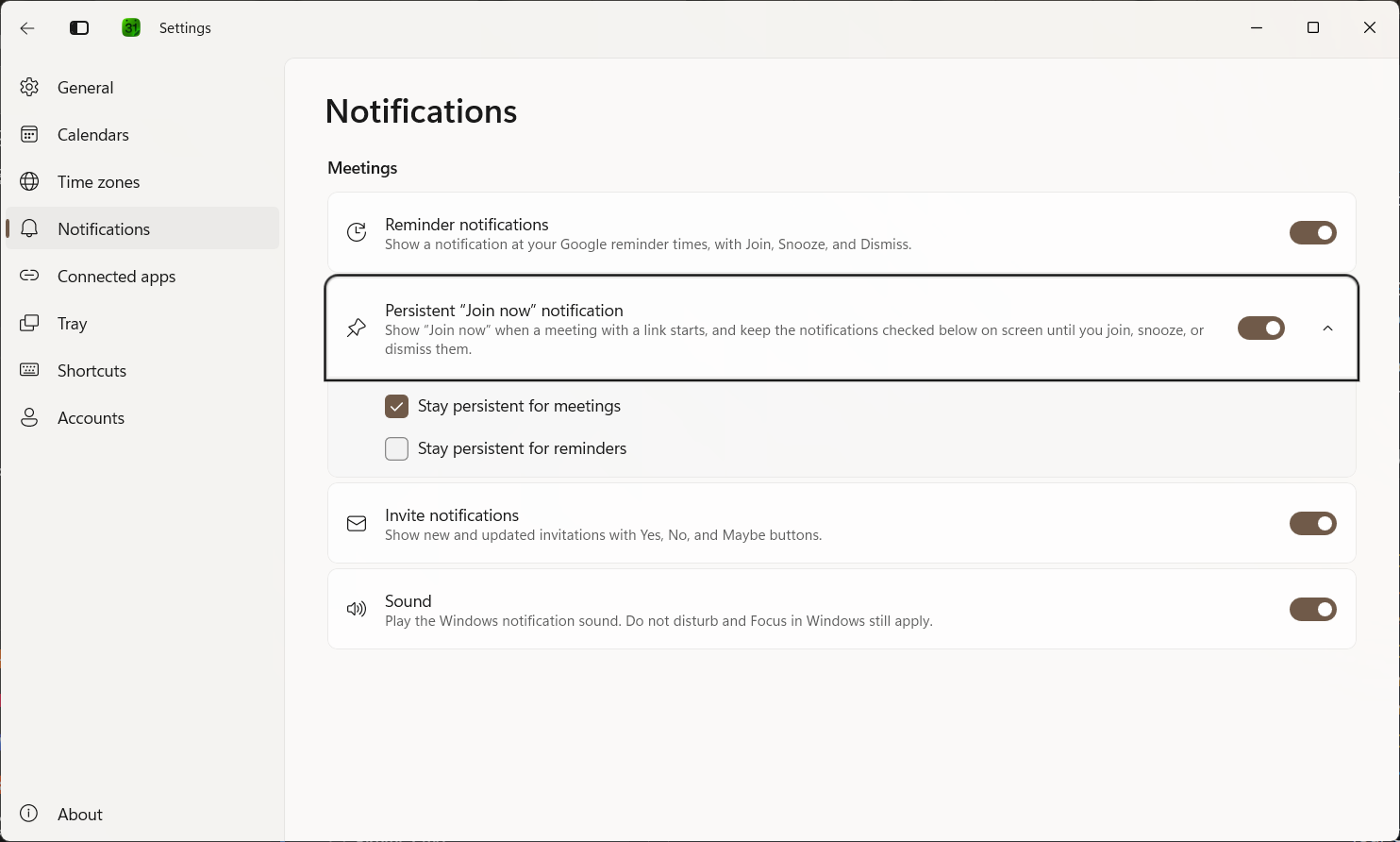
- Reminder notifications
- Persistent “Join now” notification, with Stay persistent for meetings and Stay persistent for reminders
- Invite notifications
- Booking notifications (once you’re signed in to Cal.com)
- Sound
See Notifications.
Connected apps
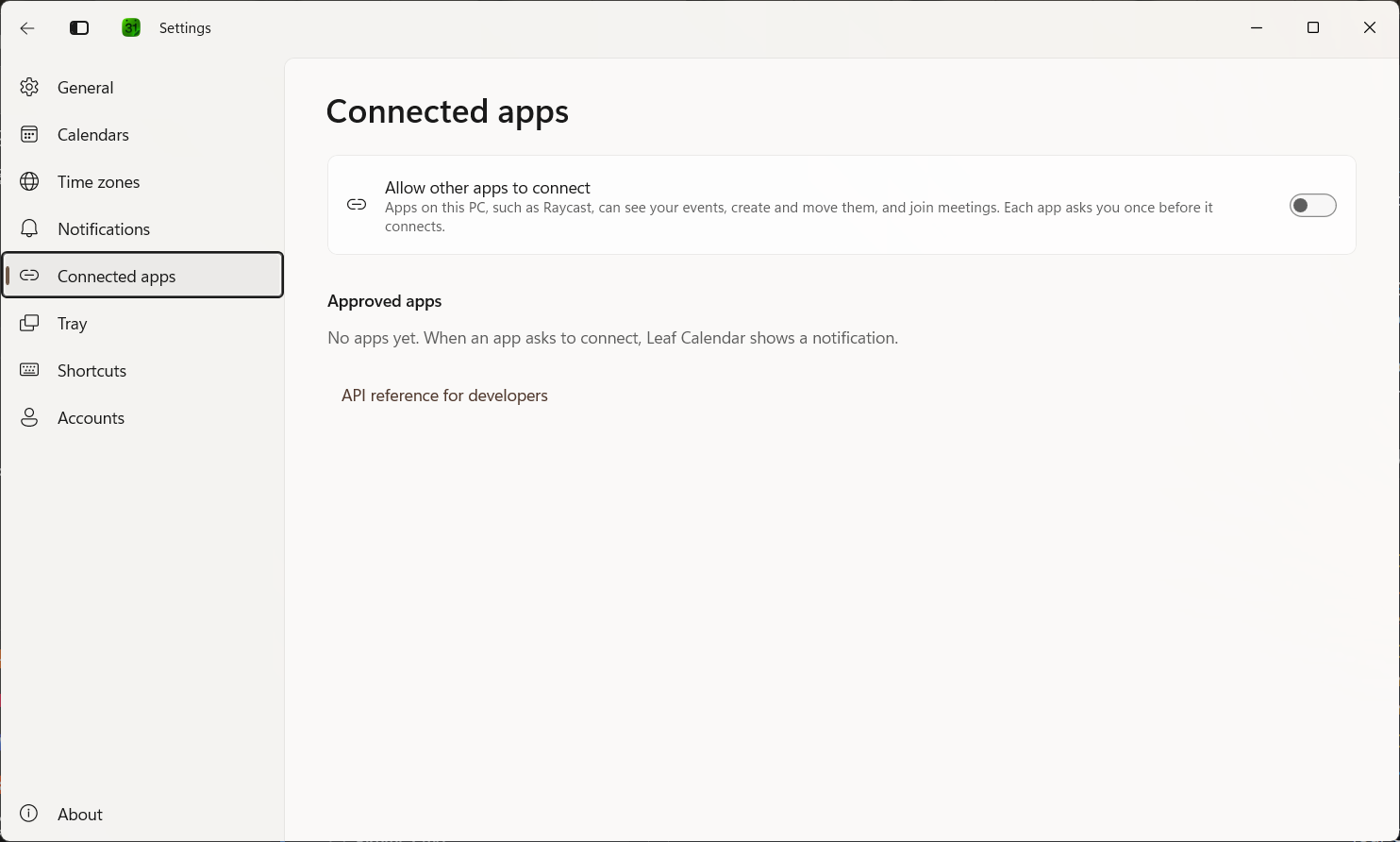
- Allow other apps to connect: off until you turn it on.
- Approved apps: every app you’ve allowed, each with Remove.
See Connected apps.
Tray
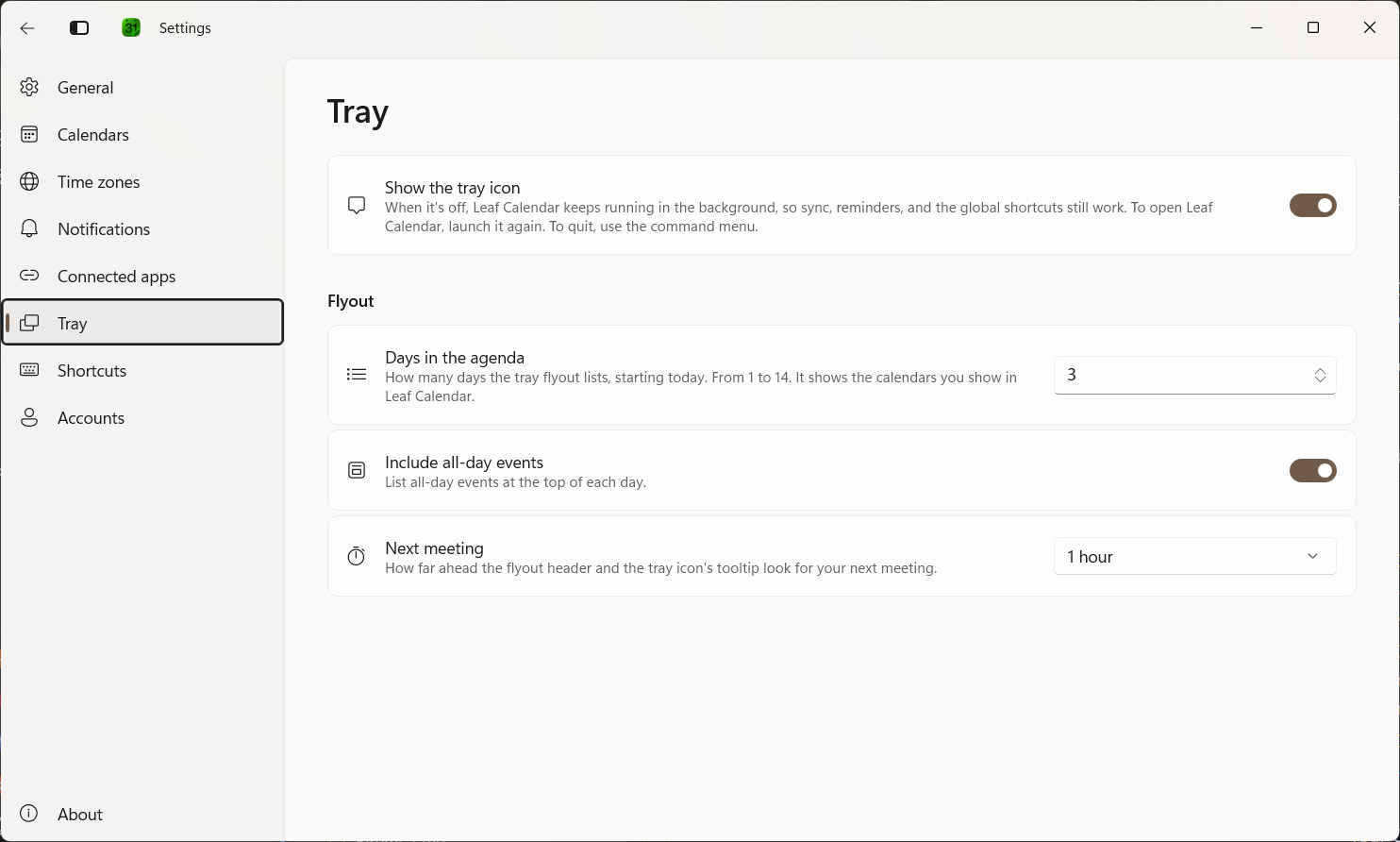
- Show the tray icon
- Days in the agenda
- Include all-day events
- Next meeting: how far ahead the flyout header and the tooltip look.
See The tray icon.
Shortcuts
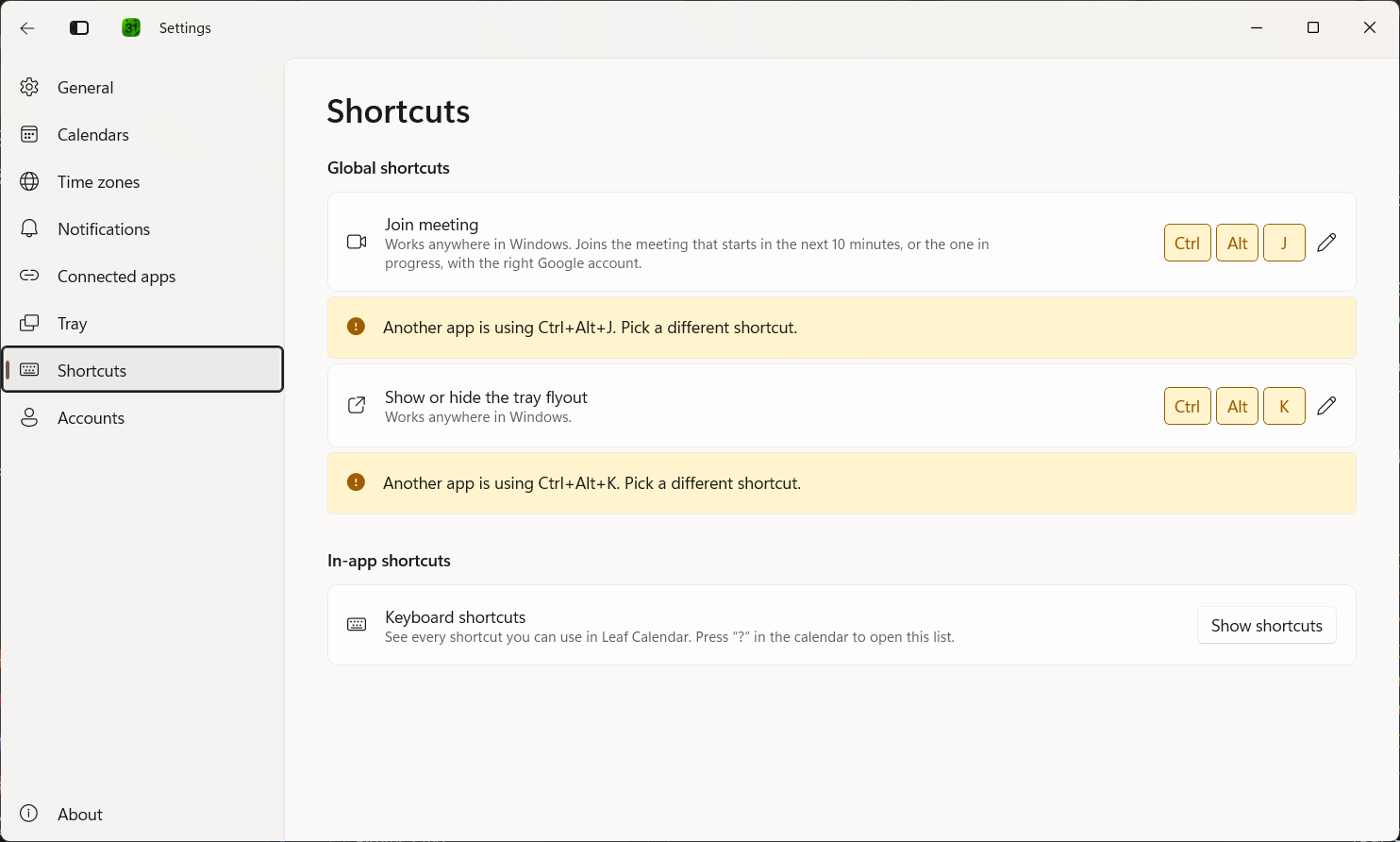
- Join meeting:
Ctrl+Alt+Juntil you change it. Works anywhere in Windows. - Show or hide the tray flyout:
Ctrl+Alt+Kuntil you change it. - Keyboard shortcuts: Show shortcuts opens the cheat sheet of every in-app shortcut.
See Joining meetings and Keyboard shortcuts.
Accounts
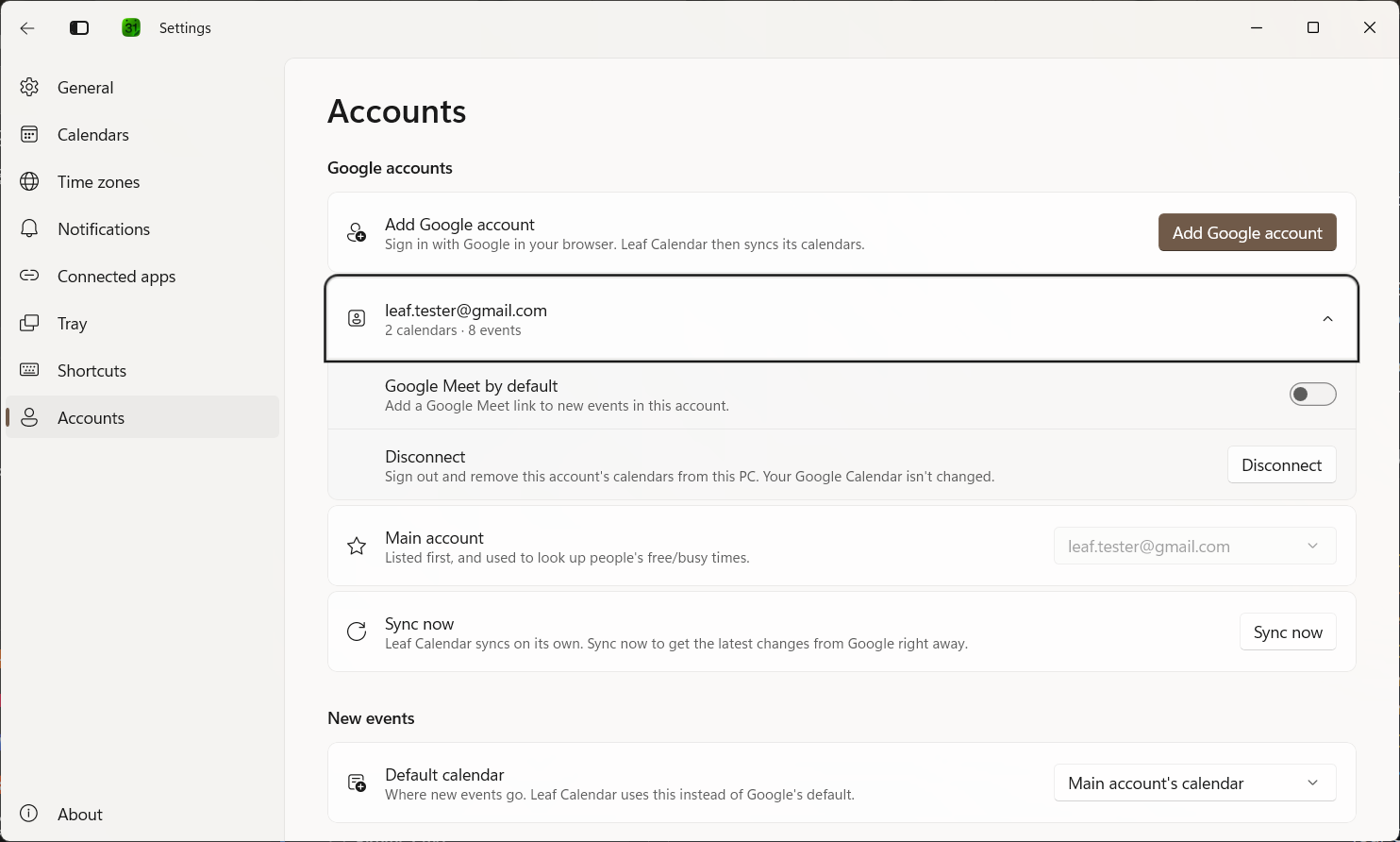
Google accounts
- Add Google account: sign in to another Google account.
- Each account has:
- Google Meet by default: add a Meet link to new events in this account.
- Disconnect: sign out and remove this account’s calendars from this PC. Your Google Calendar isn’t changed. If you have changes that haven’t reached Google yet, Leaf Calendar warns you first.
- Main account: listed first, and used to look up people’s busy times.
- Sync now: get the latest changes from Google right away.
New events
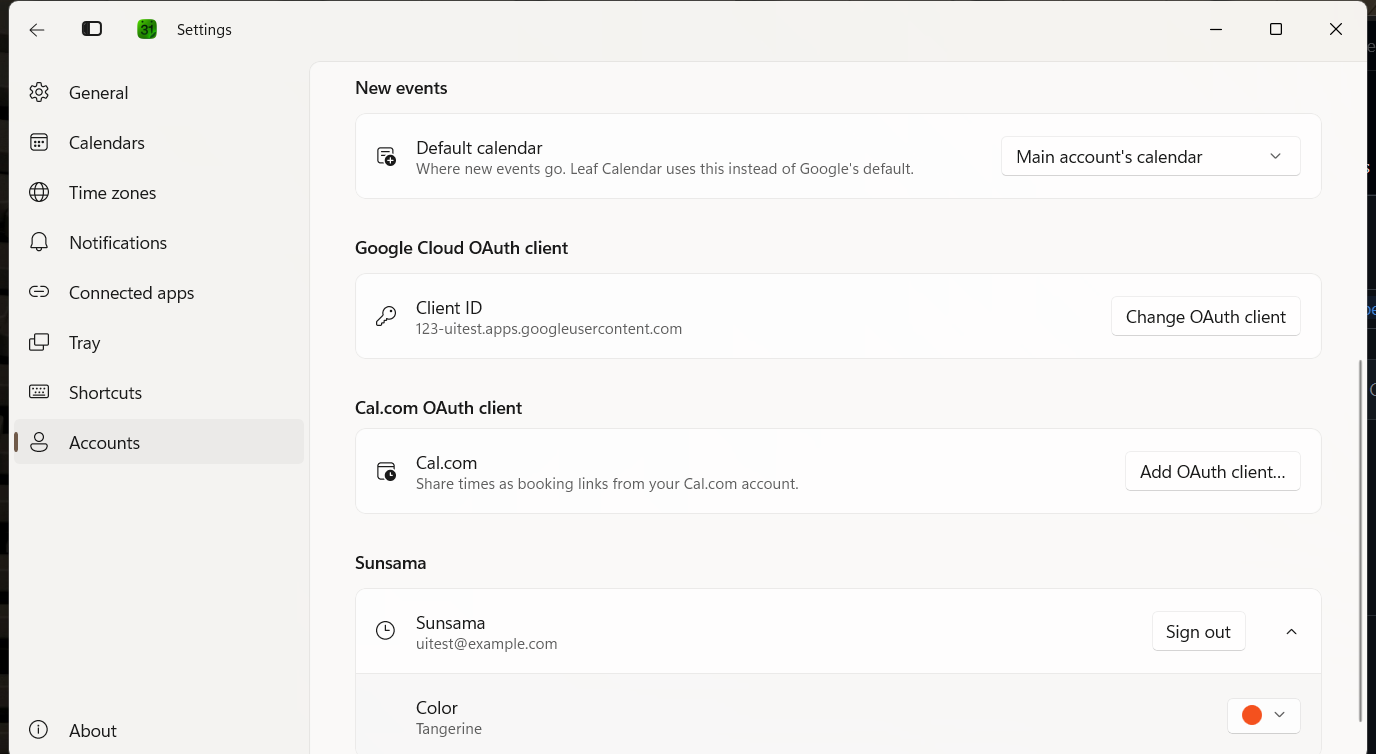
- Default calendar: where new events go.
Google Cloud OAuth client
- Change OAuth client: replace the Client ID and Client secret. See Google Cloud setup.
Cal.com OAuth client
- Add your Cal.com client, sign in, sign out, or remove it. See Cal.com booking links.
Sunsama
- Sign in with Sunsama: show the times Sunsama plans for your tasks on your calendar. Sign out removes the sign-in and the Sunsama blocks. See Sunsama tasks.
- Color (open the card): the color your Sunsama blocks are drawn in.
About
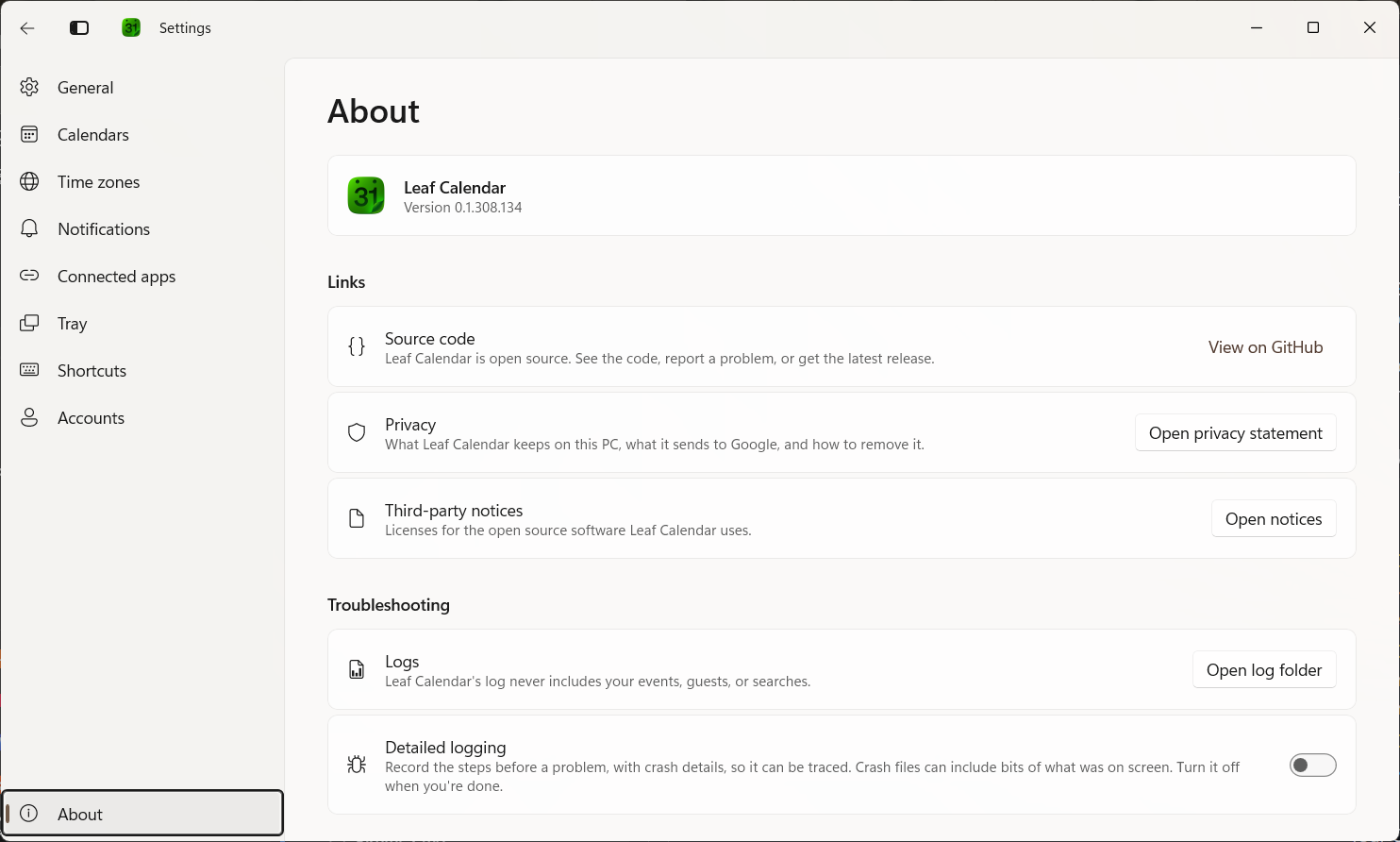
- The version of Leaf Calendar you’re running.
- View on GitHub: the source code, problem reports, and the latest release.
- Open privacy statement: what Leaf Calendar keeps on your PC, what it sends to Google, and how to remove it.
- Open notices: licenses for the open source software Leaf Calendar uses.
- Open log folder: Leaf Calendar’s log never includes your events, guests, or searches.
- Detailed logging: records more detail, including crash details, so a problem can be traced. Crash files can include bits of what was on screen, so turn it off when you’re done.