 Leaf Calendar
Sunsama tasks
Sign in to Sunsama, and the times Sunsama plans for your tasks show on your calendar, next to your real events. It’s read-only: Leaf Calendar never changes anything in Sunsama or Google, and nothing is synced between them.
Prerequisites
- A Sunsama account
Sign in
- Go to Settings › Accounts and find the Sunsama card, at the bottom of the page.
- Click Sign in with Sunsama. Your browser opens Sunsama. Sign in and allow access.
- Back in Leaf Calendar, you’ll see “Successfully signed in to Sunsama”, and the card shows your Sunsama email.
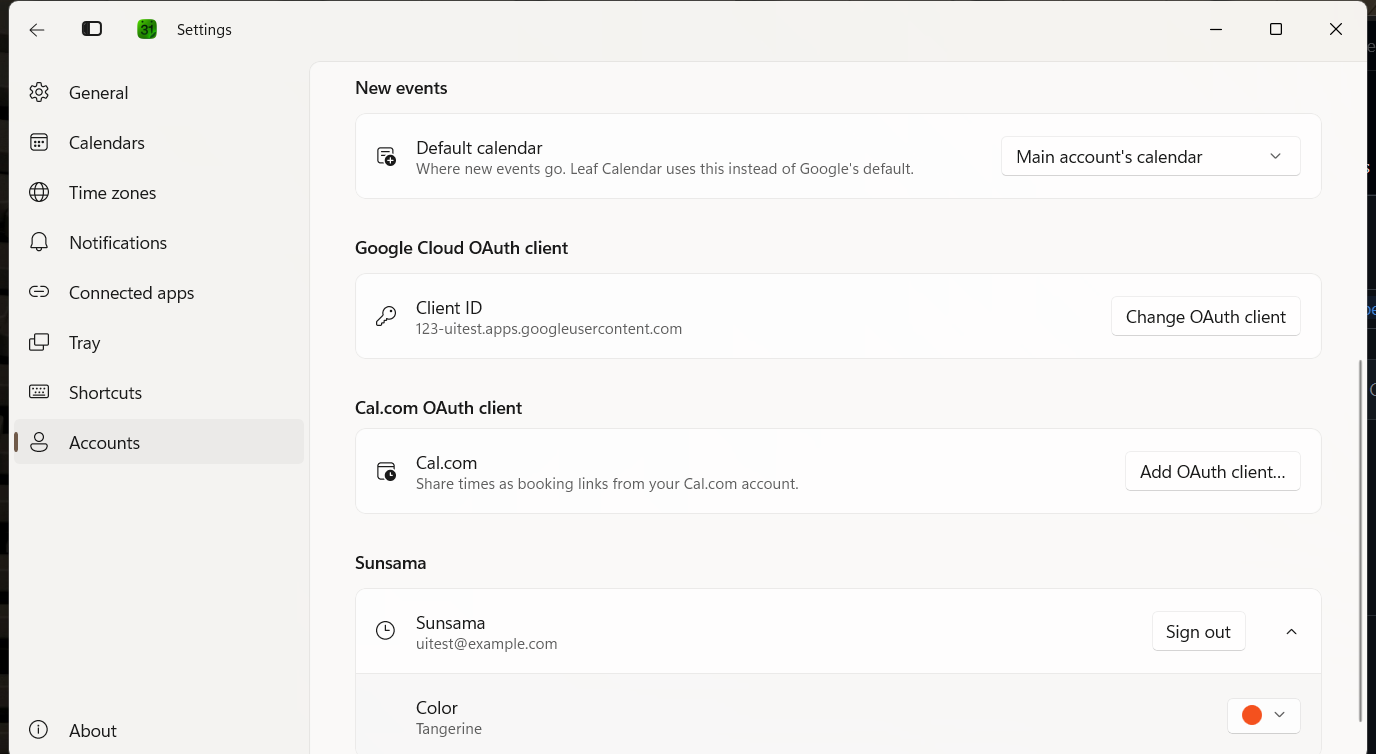
There’s no OAuth client to create: Leaf Calendar registers its own with Sunsama when you sign in for the first time, or after signing out. Leaf Calendar can only read your Sunsama tasks and calendar.
To pick the color your Sunsama blocks are drawn in, open the card and click the dot next to Color. Use the default color goes back to Tangerine.
Turning it on and off
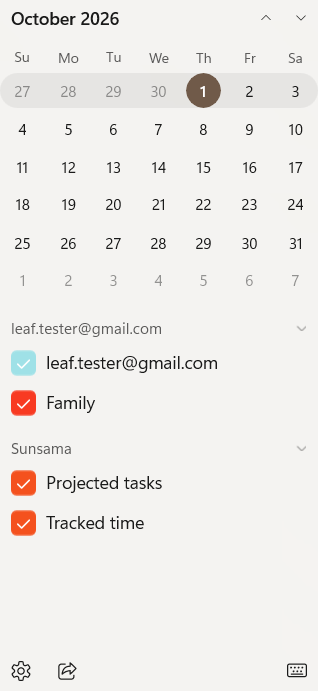
Once you’re signed in, a Sunsama group shows in the sidebar, under your Google accounts. Check or uncheck its two items like calendars:
- Projected tasks shows or hides every Sunsama block.
- Tracked time shows or hides the time you’ve tracked on your tasks.
Reading a block
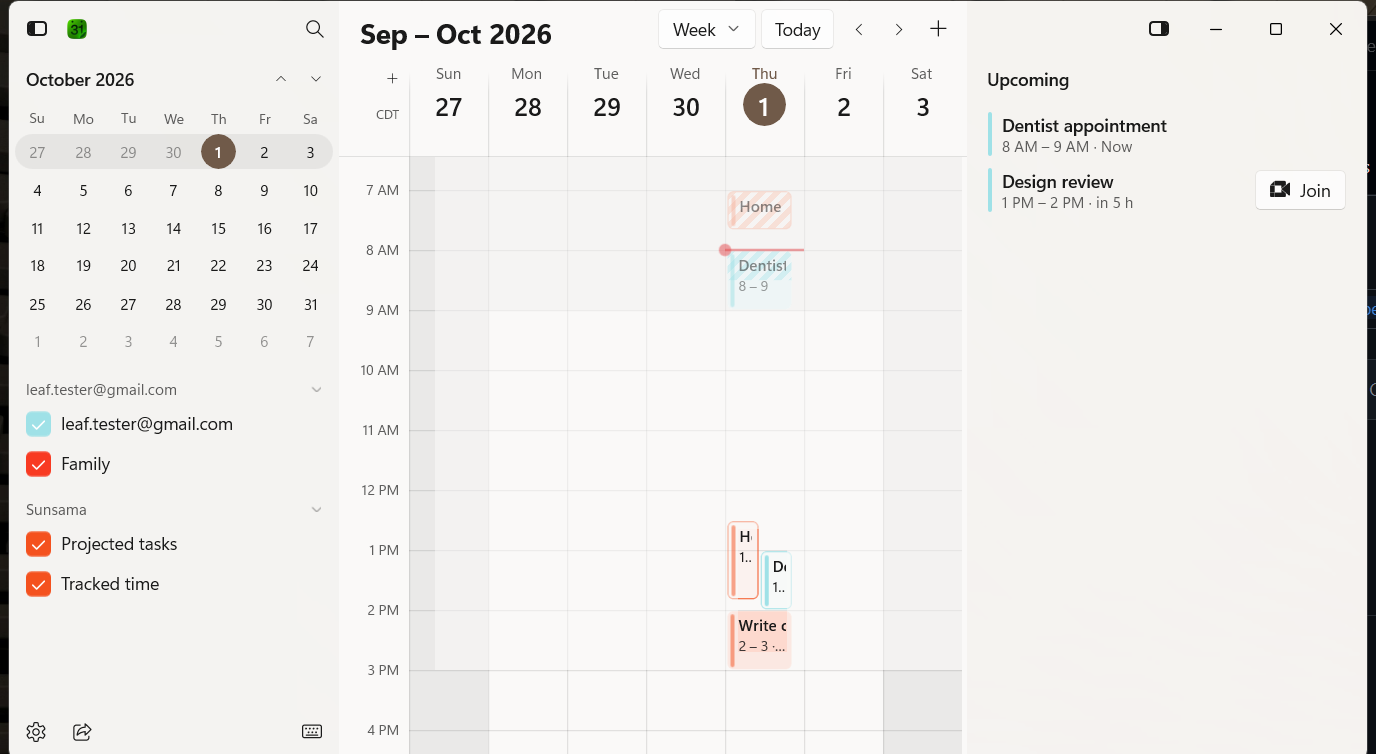
- Outlined blocks are where Sunsama plans to fit a task (its projected times), drawn like an invitation you haven’t answered.
- Solid blocks are tasks you timeboxed in Sunsama.
- The task’s channel follows the time on the block.
- Stripes show the time you’ve tracked, filling the block from the top. A block that’s half striped has had half its time tracked. A task split over several blocks fills them in order.
- Completed tasks look faded, like past events. Sunsama stops planning a task once it’s done, so Leaf Calendar shows it ending when you finished it, as long as you tracked (or planned) it.
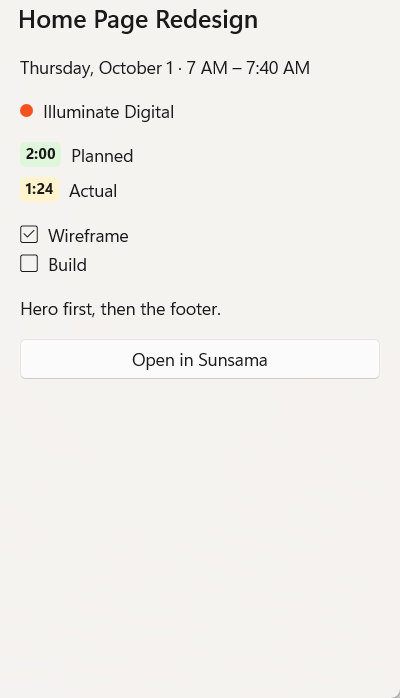
Click a block to see the task in the right panel: its title, time, channel, how long you planned (2:00 Planned, on a green badge), and how long you’ve tracked (1:24 Actual, on an orange badge), then its subtasks, checked when done, and its notes. You can’t change them here. Open in Sunsama opens the task in the Sunsama app, or Sunsama’s website if you don’t have the app.
Sunsama blocks can’t be moved, resized, copied, or deleted. Right-click one for Open in Sunsama.
Tasks that are already Google events
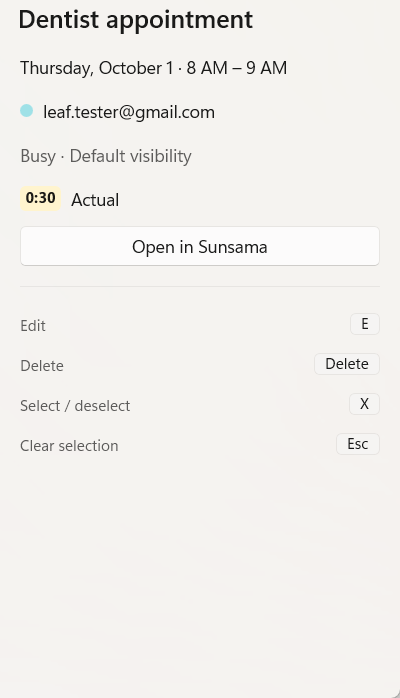
A Sunsama task that’s already an event on one of your Google calendars (one you timeboxed on Google, or imported from it) doesn’t get a second block. Instead, that event shows the task’s tracked time: the stripes on its block, and its tracked time (Actual) and Open in Sunsama in its details.
Signing out
In Settings › Accounts, click Sign out on the Sunsama card. Leaf Calendar removes the sign-in and every Sunsama block it saved, and the sidebar group goes away.
If Sunsama signs Leaf Calendar out, the card says “Sunsama signed you out. Sign in again to see your task plan.” Your blocks stay until you sign in again or sign out.
Troubleshooting
| What you see | What to do |
|---|---|
| “Port 53818 is busy, so Leaf Calendar can’t finish signing in.” | Another app is using that port. Close it and try again. |
| “Couldn’t reach Sunsama.” | Check your connection and try again. |
| “Sunsama didn’t finish signing in.” | Try again, and allow access in the browser. |
| A task doesn’t show | Sunsama only gives times for tasks it has planned or you timeboxed. Tasks with no time on the calendar don’t show. |