 Leaf Calendar
Connected apps
Let other apps on your PC work with your calendar through Leaf Calendar. For example, a Raycast extension can show your next meeting, create an event, or join a call without opening Leaf Calendar.
Connected apps can:
- See your events (titles, times, locations, descriptions, and guests)
- Create and move events
- Join meetings
- Use your Cal.com links
They never get your Google or Cal.com sign-in. Every change they make goes through Leaf Calendar, the same as a change you make yourself.
Turning it on
It’s off until you turn it on.
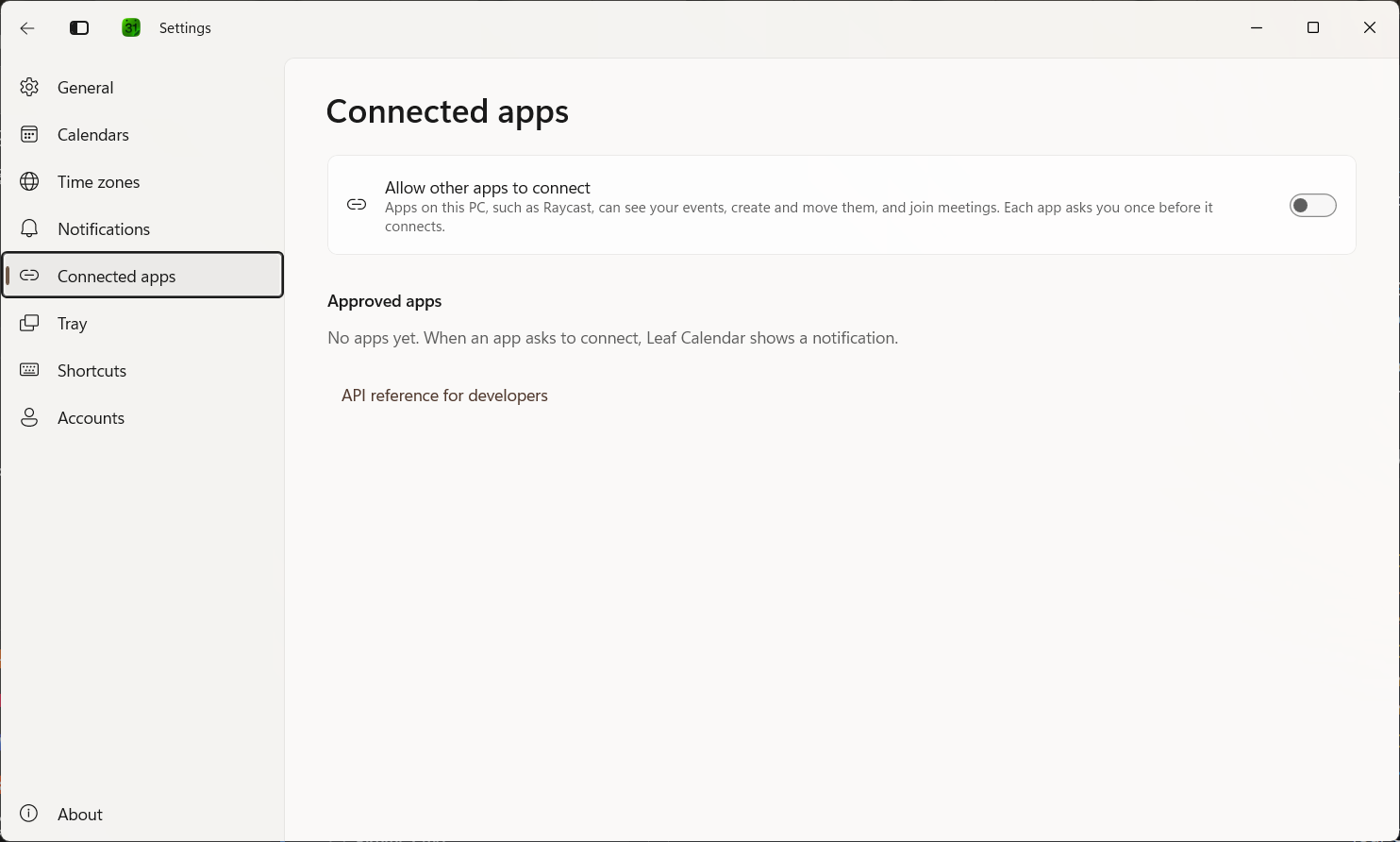
- Go to Settings › Connected apps.
- Turn on Allow other apps to connect.
Allowing an app
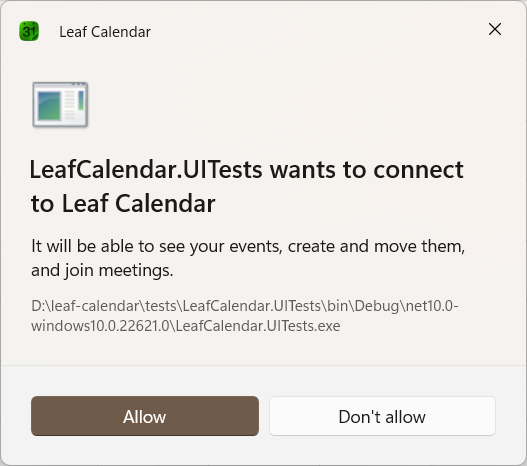
The first time an app tries to connect, Leaf Calendar asks you. A small window shows the app’s name and icon with Allow and Don’t allow.
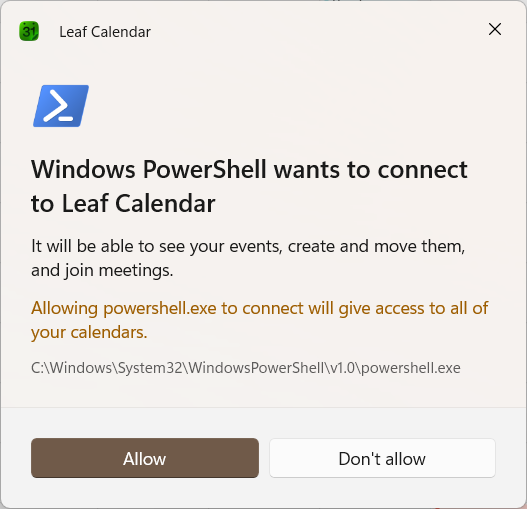
Some apps run through a general tool like
node.exe,python.exe, or PowerShell. If you allow one of those, every script that uses it can connect, so Leaf Calendar warns you first. Only allow it if you trust what’s running.
Removing an app
Every app you’ve allowed is listed under Approved apps in Settings › Connected apps. Click Remove to stop it. Turn Allow other apps to connect off to stop them all.
Only on your PC
Apps connect through a private channel that only your Windows account can open. Web pages can’t use it, and other people who sign in to your PC can’t either.
For developers
Building something that talks to Leaf Calendar? See the API reference.