Leaf Calendar
People and busy times
See when other people are busy, right on your own calendar, so you can pick a time that works for everyone.
You see what Google lets you see. For most coworkers that’s just busy blocks. If someone shares their calendar with you with details, you’ll see more. Leaf Calendar asks Google with your main account (Settings › Accounts › Main account).
Overlay a teammate (P)
- Press
P, or search for “overlay” in the command menu. - Type a name or email and pick the person.
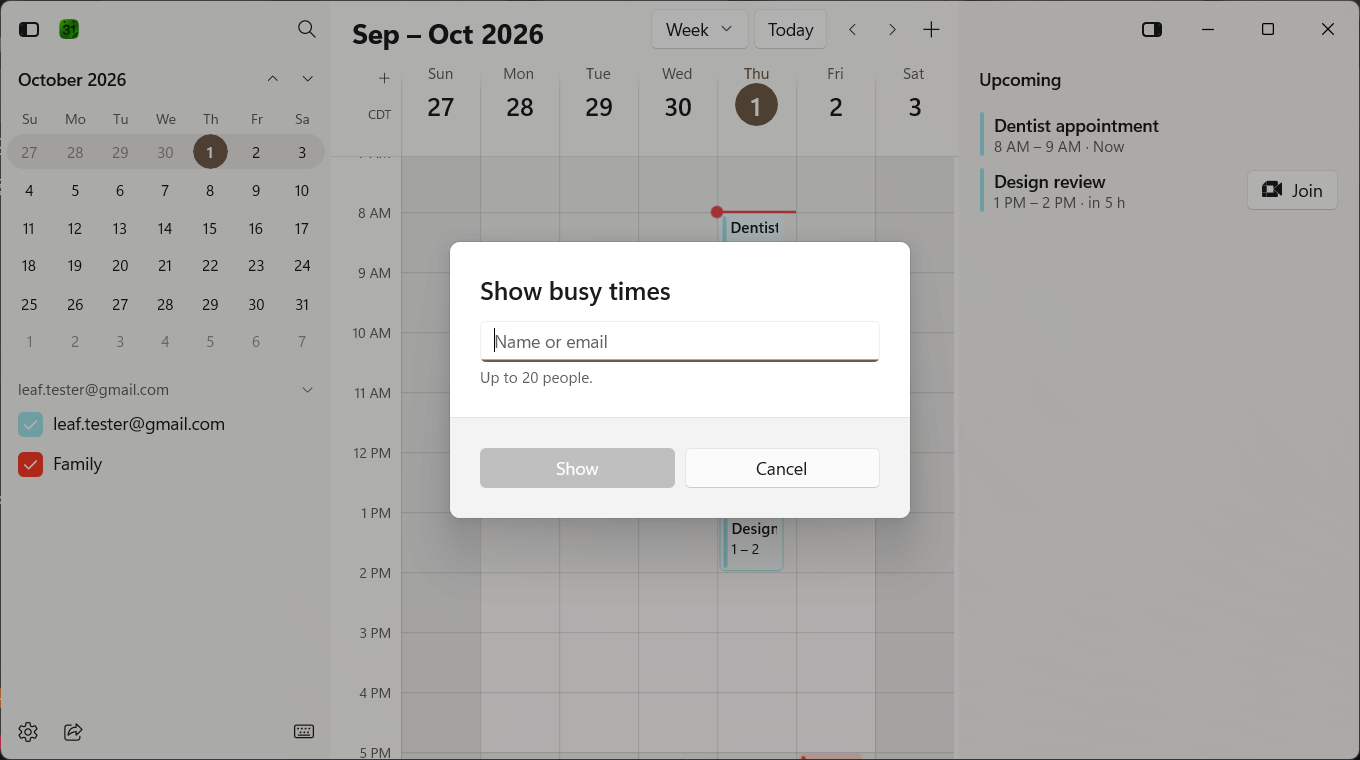
Their busy times appear on your calendar next to your events. You can overlay up to 20 people at once.
Meet with (F)
- Press
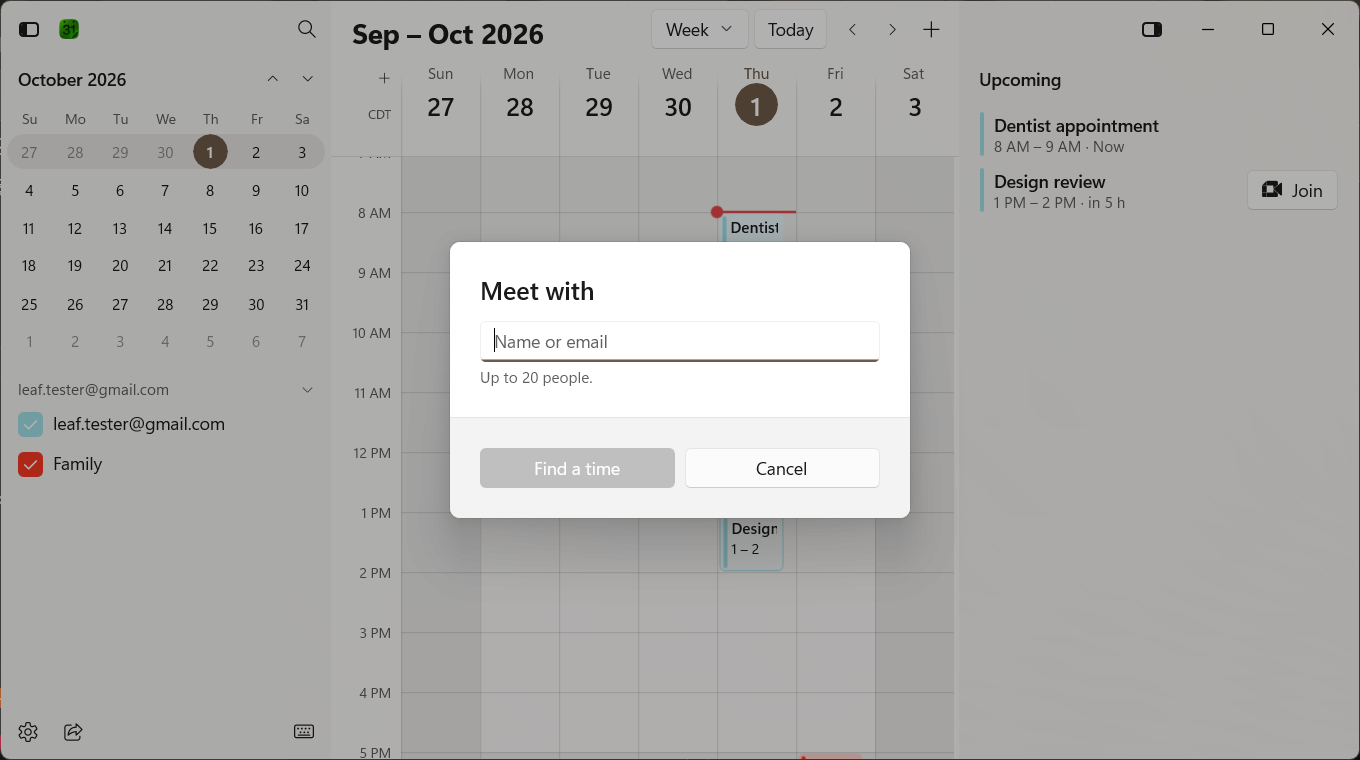
F, or search for “meet with” in the command menu. - Pick one or more people.
- Look for a gap where nobody is busy, and drag on the calendar to create the event. Everyone you picked is already added as a guest.
The guests of a meeting (E then F)
Select a meeting and press E then F to overlay every guest’s busy times. Handy when you need to move a meeting.
The overlay bar
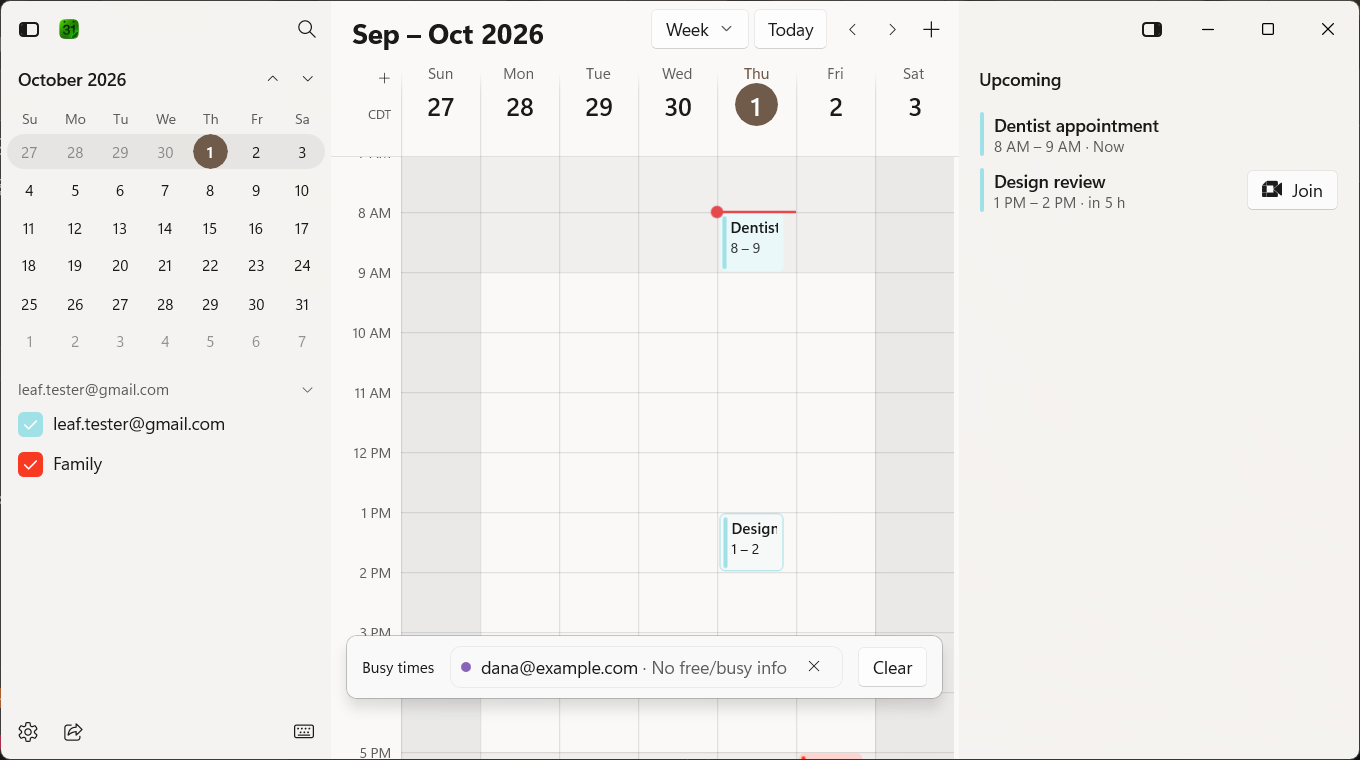
While anyone is overlaid, a bar at the bottom of the calendar shows who:
- One person shows as a chip with a remove button.
- Two or more show as a dropdown (“3 people”), each with its own remove button.
- Clear removes everyone.