 Leaf Calendar
The tray icon
Leaf Calendar’s icon sits in the system tray, next to the clock.
- Hover over it to see your next meeting and how soon it starts, like “Standup in 12 min”.
- Click it to open the agenda flyout.
- Right-click it for the tray menu.
Can’t see it? Windows may have tucked it into the hidden icons (the
^arrow). Drag it onto the taskbar to keep it in view.
The agenda flyout
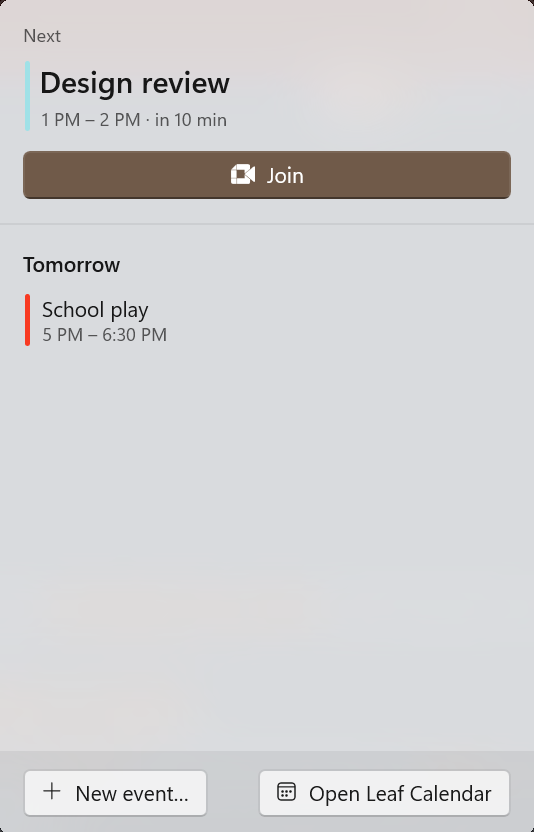
The flyout shows:
- Your next meeting at the top, with how soon it starts and a large Join button.
- Your agenda, grouped by day, with a Join button on each meeting that has a link.
- New event… to create an event, and Open Leaf Calendar to open the main window.
Click an event to open it in the main window. Press Esc or click anywhere else to close the flyout.
Press Ctrl+Alt+K anywhere in Windows to show or hide the flyout. Change that shortcut in Settings › Shortcuts.
The tray menu
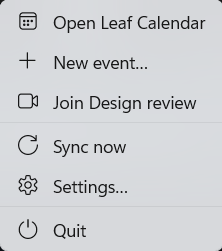
| Item | What it does |
|---|---|
| Open Leaf Calendar | Opens the main window |
| New event… | Opens the main window with a new event |
| Join (your next meeting’s name) | Joins the meeting that starts in the next 10 minutes, or the one in progress. When there’s nothing to join, it reads Join next meeting and is grayed out |
| Sync now | Gets the latest changes from Google right away |
| Settings… | Opens Settings |
| Quit | Closes Leaf Calendar completely |
Tray settings
In Settings › Tray you can choose:
- Days in the agenda: how many days the flyout lists.
- Include all-day events: list all-day events at the top of each day.
- Next meeting: how far ahead the flyout header and the tooltip look (15 minutes up to 8 hours).
- Show the tray icon: turn it off and Leaf Calendar keeps running in the background, so sync, reminders, and the global shortcuts still work. To open Leaf Calendar, launch it again from the Start menu. To quit, use the command menu.
The flyout shows the calendars you have checked in the sidebar.