 Leaf Calendar
Time zones
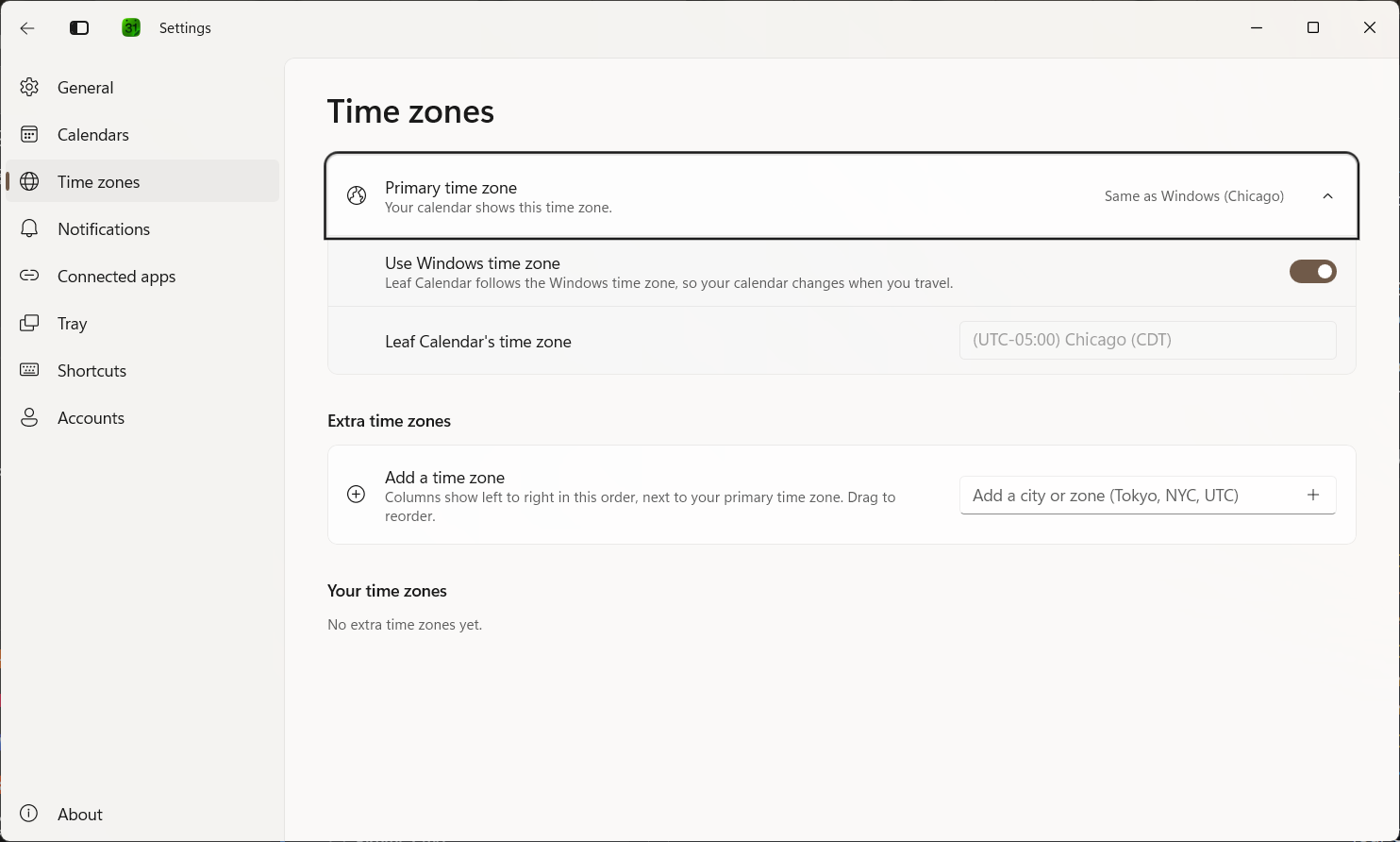
Leaf Calendar shows your calendar in one primary time zone, and can show up to 4 extra time zone columns beside it, so you can see what time it is for the people you work with.
Your primary time zone
By default, Leaf Calendar follows Windows’ time zone, so your calendar changes when you travel.
If you’ve picked a time zone of your own and your PC’s time zone changes (say, you land in London), a bar asks “Your PC is now on London time. Show Leaf Calendar in that time zone?” Click Switch to follow it, or Keep (it names your own zone, like “Keep Chicago”) to stay put. Turn this question off with Ask when the Windows time zone changes.
To pick a time zone of your own, go to Settings › Time zones, open Primary time zone, and turn off Use Windows time zone.
Extra time zone columns
- Go to Settings › Time zones.
- In Add a time zone, type a city or a short name, like Tokyo, NYC, SF, LON, or UTC. Small typos are fine: “Pheonix” still finds Phoenix.
- Pick the zone from the list.
Each extra zone shows as a column of hours to the left of the calendar. Under Your time zones, give each column a label of your own, drag the zones (or use More options › Move up and Move down) to change their order, and Remove one you don’t need.
Time travel
Want to see your whole calendar as someone in another time zone sees it? Press Z, or search for “time travel” in the command menu, and pick a zone.
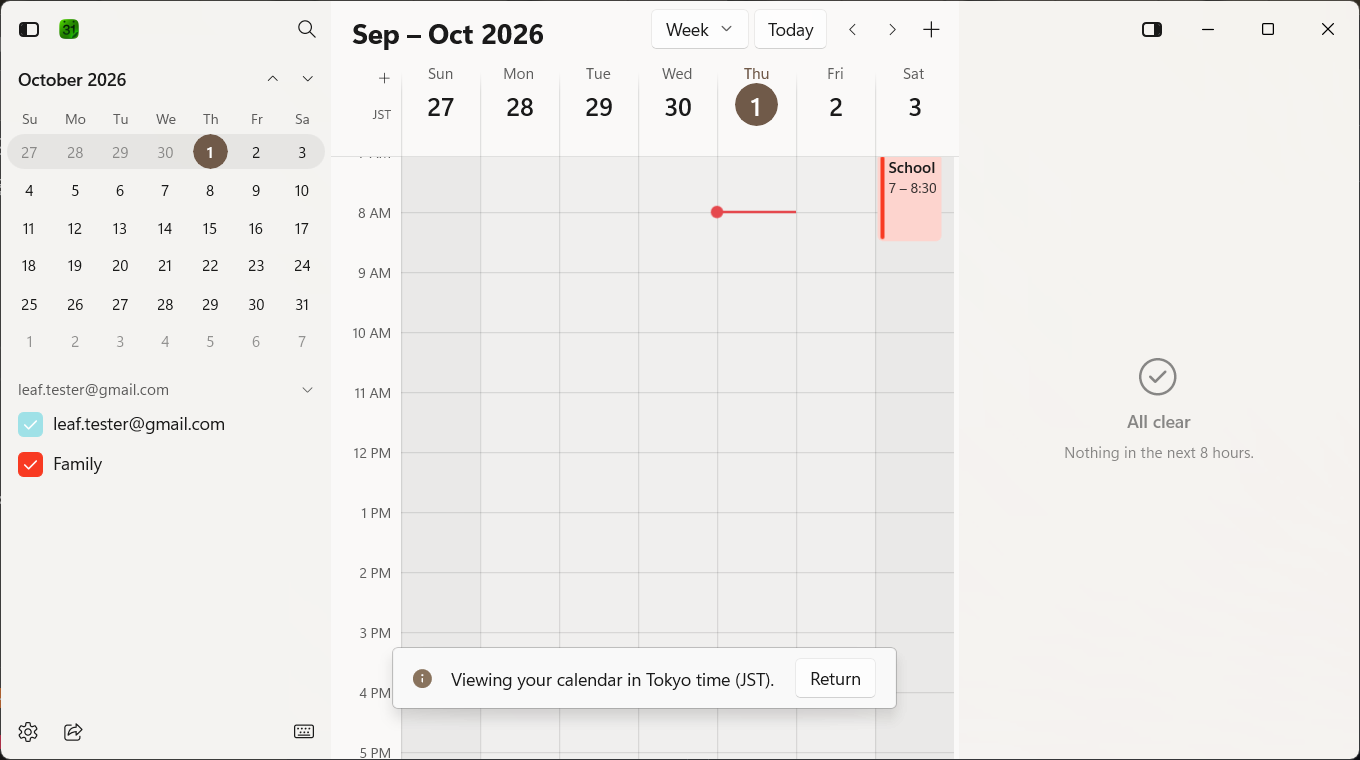
The calendar redraws in that zone, and a bar above it says “Viewing your calendar in Tokyo time (JST).” Click Return to go back to your own time zone.
An event’s own time zone
Each event can have its own time zone, which helps for flights and trips. In the event editor, change Time zone, or press E then Z with an event selected.