 Leaf Calendar
Share availability
Offer someone a few times you’re free. Drag them on your calendar, and Leaf Calendar copies them as text you can paste into an email or chat, like:
Tue Sep 30: 10–11 AM, 2–4 PM ET
Leaf Calendar also saves the times on your calendar, so you remember what you offered and can book the one they pick.
1. Start sharing
Press S, or click Share availability at the bottom of the sidebar.
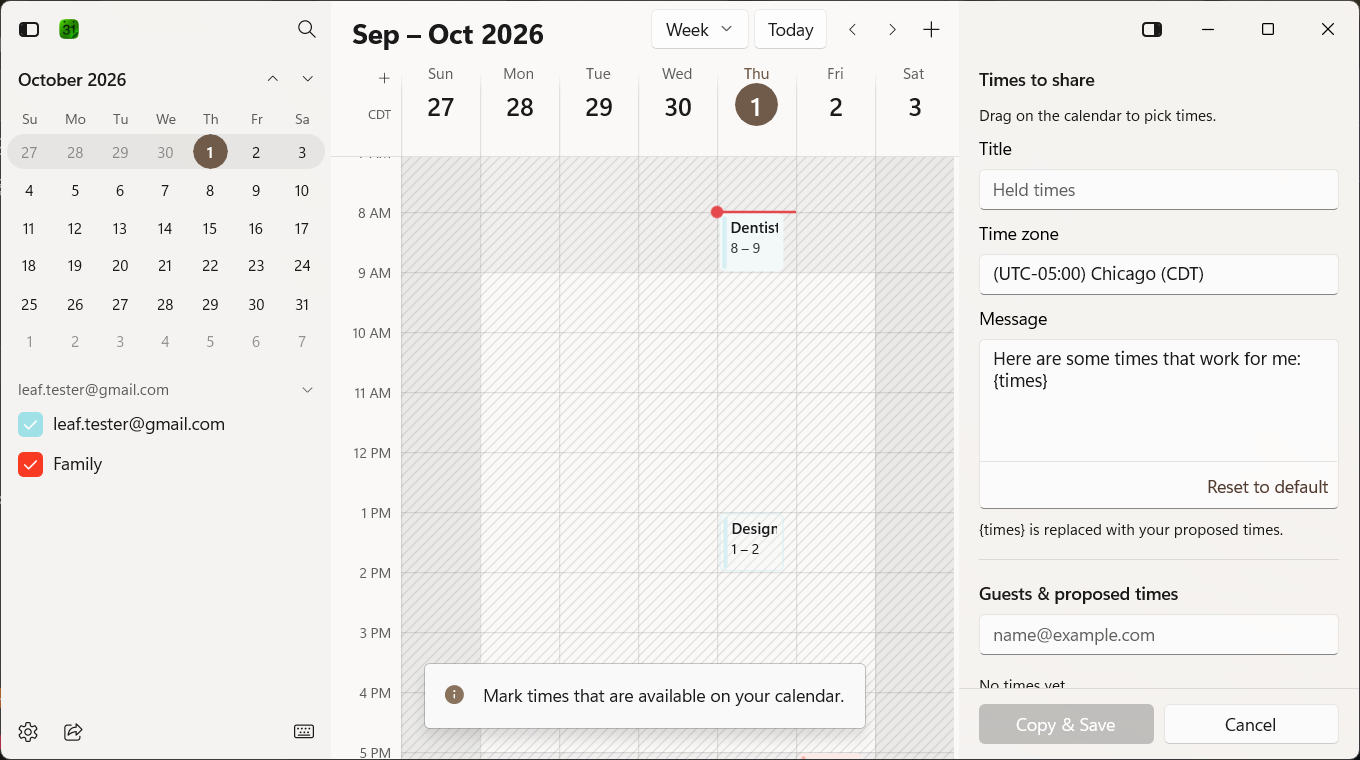
Your events fade while you pick, and a hint at the bottom of the calendar asks you to mark the times that are available.
2. Pick your times
Drag on the calendar over each time you’re free. Leaf Calendar copies exactly what you drag (it doesn’t check Google or cut out busy time), so you’re in full control.
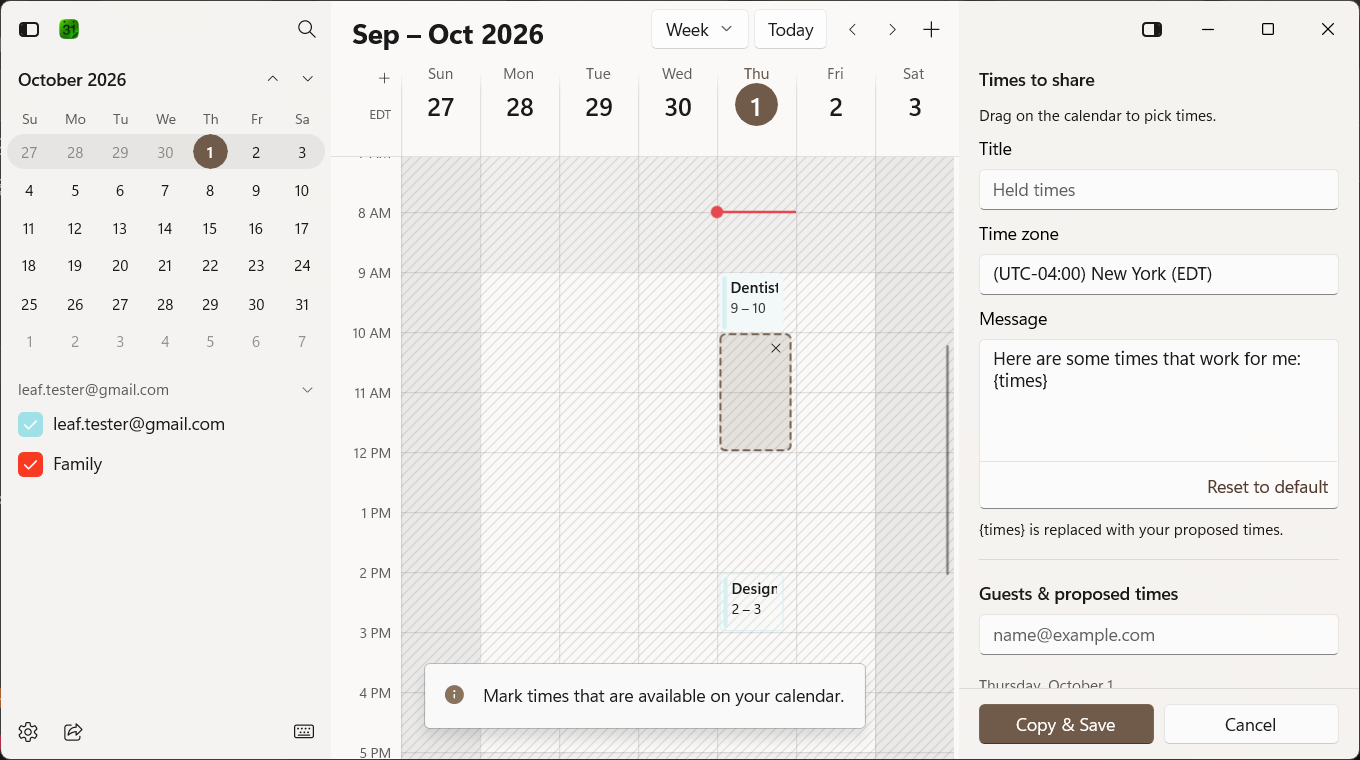
- Resize a picked time by dragging its top or bottom edge.
- Move a picked time by dragging it. It keeps its length.
- Fine-tune a time’s start and end in the right panel, or remove it.
3. Fill in the details (optional)
In the right panel (Times to share):
- Title shows on the saved times. Leave it empty and they’re called “Held times”.
- Time zone is the zone the times are written in. Pick the zone on screen, Windows’ zone, or any of your extra time zone columns.
- Message wraps your times. It starts from the default in Settings › Calendars › Share availability message, where
{times}is replaced with your proposed times. Changes here are for this share only. Reset to default puts the default back. - Guests & proposed times: add the people you’re sharing with. Type a name or email and Leaf Calendar suggests your Google contacts.
4. Copy & Save
Click Copy & Save. Your times are copied, saved as a group on your calendar, and the notice says “Availability copied”. Paste them anywhere.
Cancel, Esc, or S stops sharing and throws away anything you haven’t saved.
Sharing works offline. Nothing is sent to Google.
Saved times
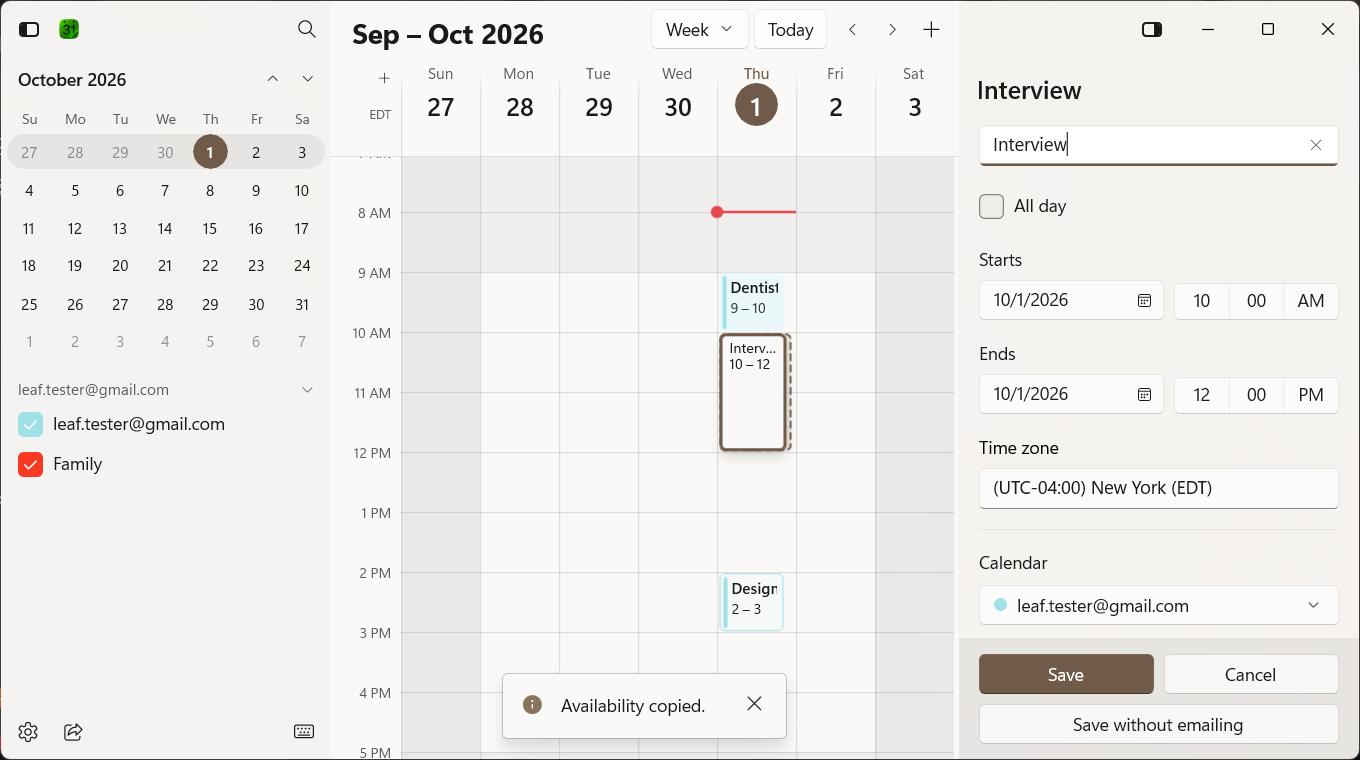
Saved times stay on your calendar as dashed outlines with their title, until you book one, delete them, or they pass.
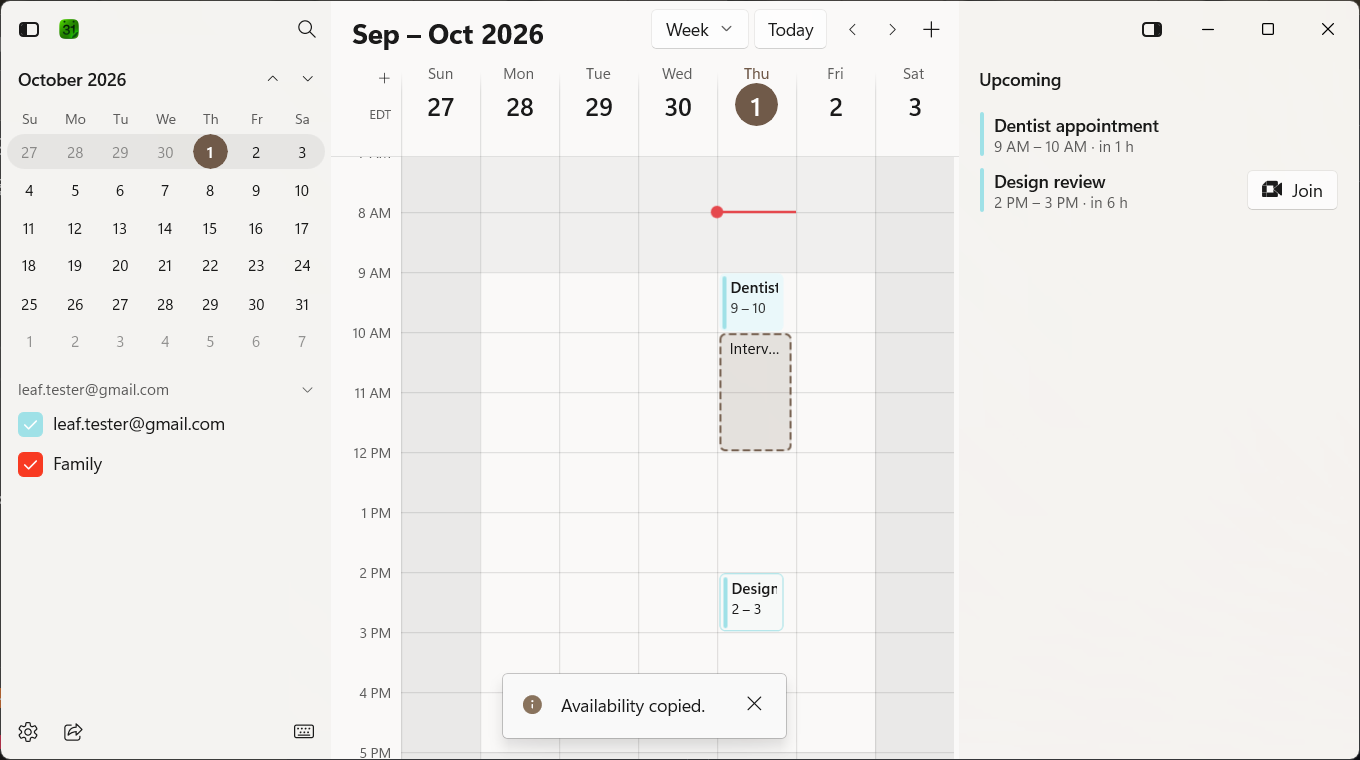
Click a saved time to open its group in the right panel (Saved times). Change anything you like, then:
- Save keeps your changes.
- Copy & Save keeps them and copies the times again.
- Close throws your changes away.
- The trash icon above the panel (Delete saved times) deletes the group.
Book the time they picked
When someone replies with the time they want:
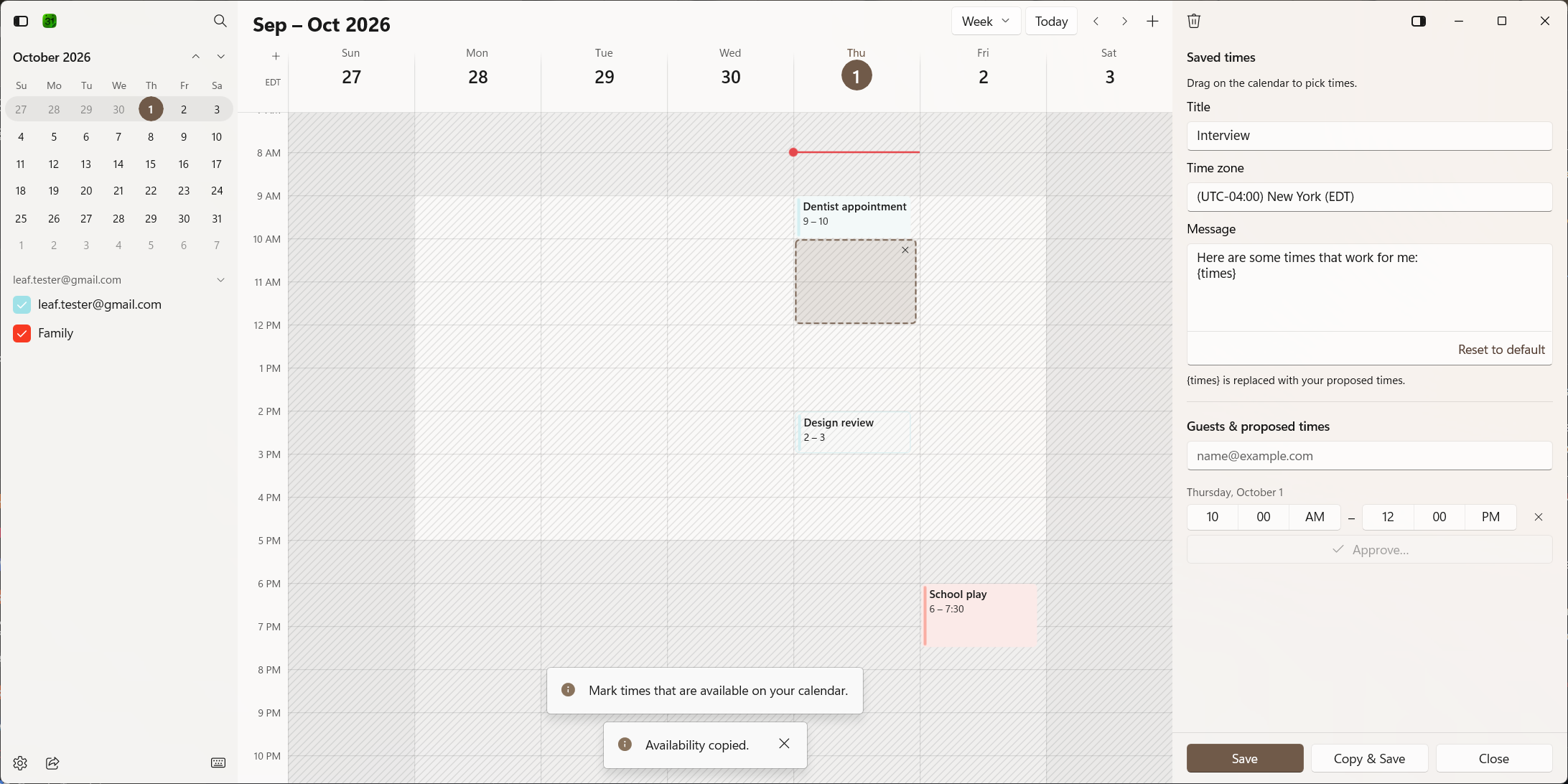
- Click the saved times to open the group.
- Make sure the group has at least one guest.
- Click Approve… next to the time they picked.
The event editor opens on that time with the title and every guest filled in. Save it, and the group goes away.
Booking links instead of text
Use Cal.com? Connect it and each time you share becomes a link people can book themselves.