 Leaf Calendar
Sidebar and calendars
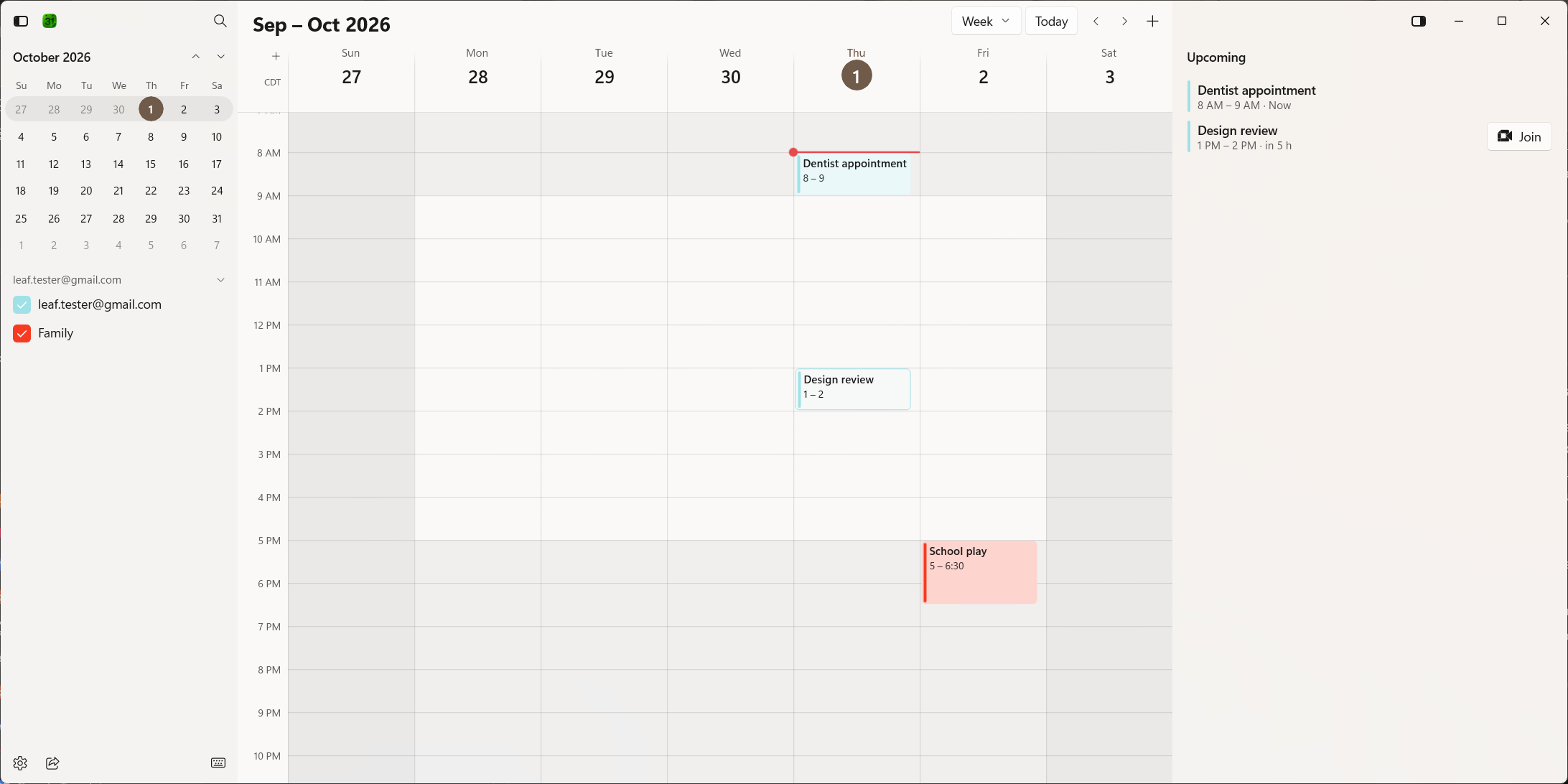
The sidebar sits on the left of the main window. Click the sidebar button in the top-left corner to show or hide it.
The mini month
A small month with today highlighted. Click any date to jump to it, and use the arrows to see other months. The search icon at the top opens the command menu.
Your calendars
Every Google account you’ve signed in to is listed with its calendars, including the ones you’re subscribed to in Google Calendar.
- Check or uncheck a calendar to show or hide its events. The checkbox uses the calendar’s color.
- Right-click a calendar for more:
- Rename… gives the calendar a name only you see, in Leaf Calendar and in Google Calendar. Leave the name empty to go back to the calendar’s own name.
- Show upcoming events lists that calendar’s events for the next 30 days in the details panel.
- Change color… opens Settings › Calendars.
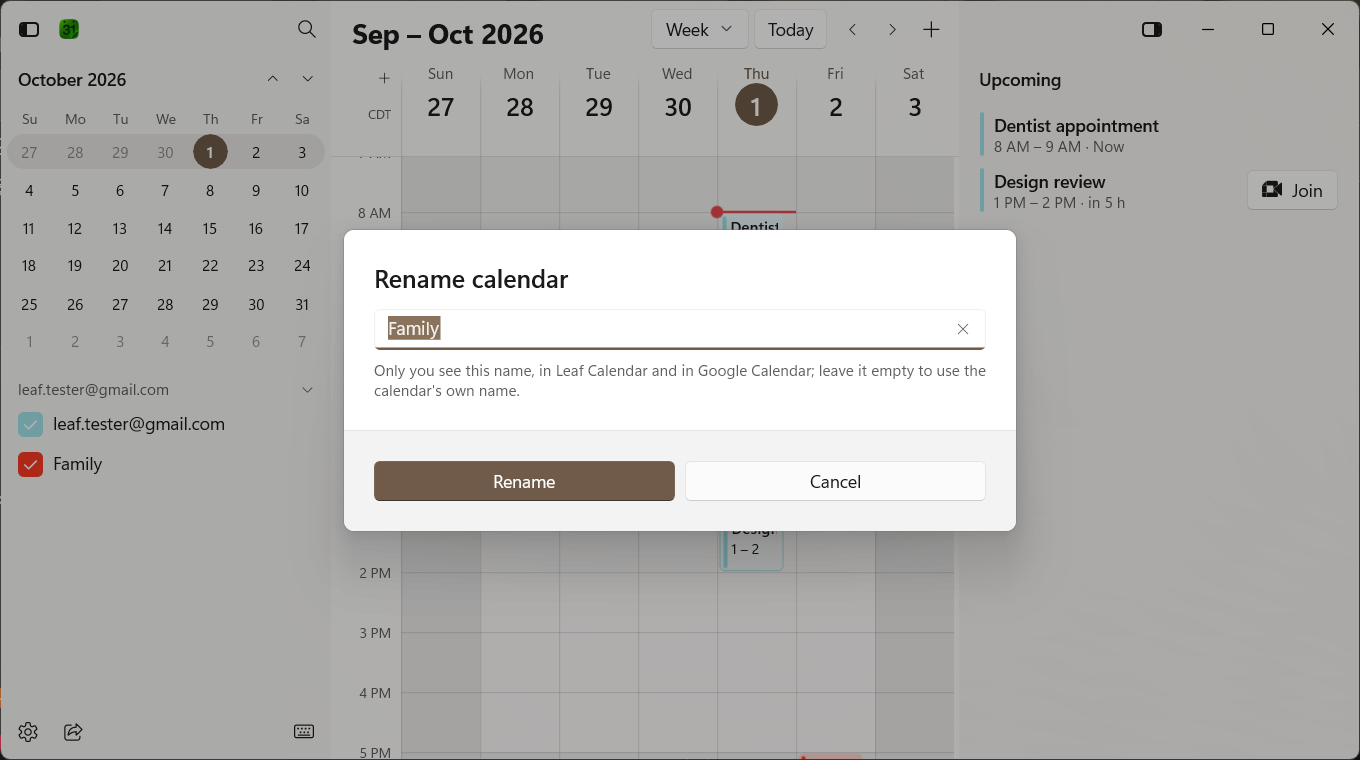
Renaming a calendar needs an internet connection, since the new name is saved to Google.
Sunsama
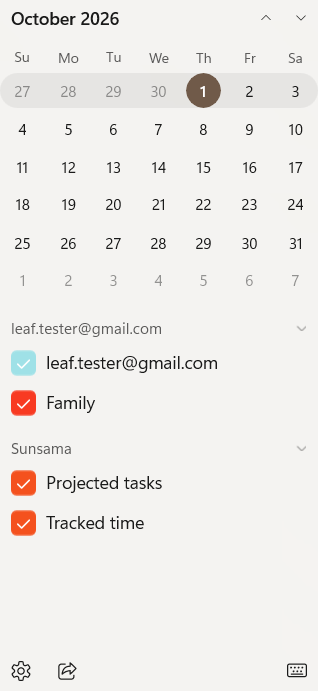
When you’re signed in to Sunsama, a Sunsama group shows under your Google accounts with two items. Check or uncheck them like calendars:
- Projected tasks shows or hides your Sunsama task blocks.
- Tracked time shows or hides the time you’ve tracked on tasks.
The buttons at the bottom
- Settings (the gear) opens Settings. You can also press
Ctrl+,. - Share availability starts sharing your free times. You can also press
S. - Keyboard shortcuts opens the shortcut cheat sheet. You can also press
?.
Colors, order, and reminders
Calendar colors, the order calendars are listed in, and each calendar’s default reminders live in Settings › Calendars.