 Leaf Calendar
Move, copy, and delete
Drag to change an event
- Move it: drag the event to a new time or day.
- Change its length: drag its top or bottom edge.
- Duplicate it: hold
Altwhile you drag. - Give it a time: drag an all-day event into the hours to turn it into a timed event.
Guests are emailed about moves. A change to a repeating event asks whether to change this event, this and following events, or all events.
Select several events
| To | Do this |
|---|---|
| Add or remove one event | Ctrl+click it |
| Select every event in a box | Hold Shift and drag a box over them |
| Select or deselect the current event | X |
| Select everything on screen | Ctrl+A |
| Clear the selection | Esc |
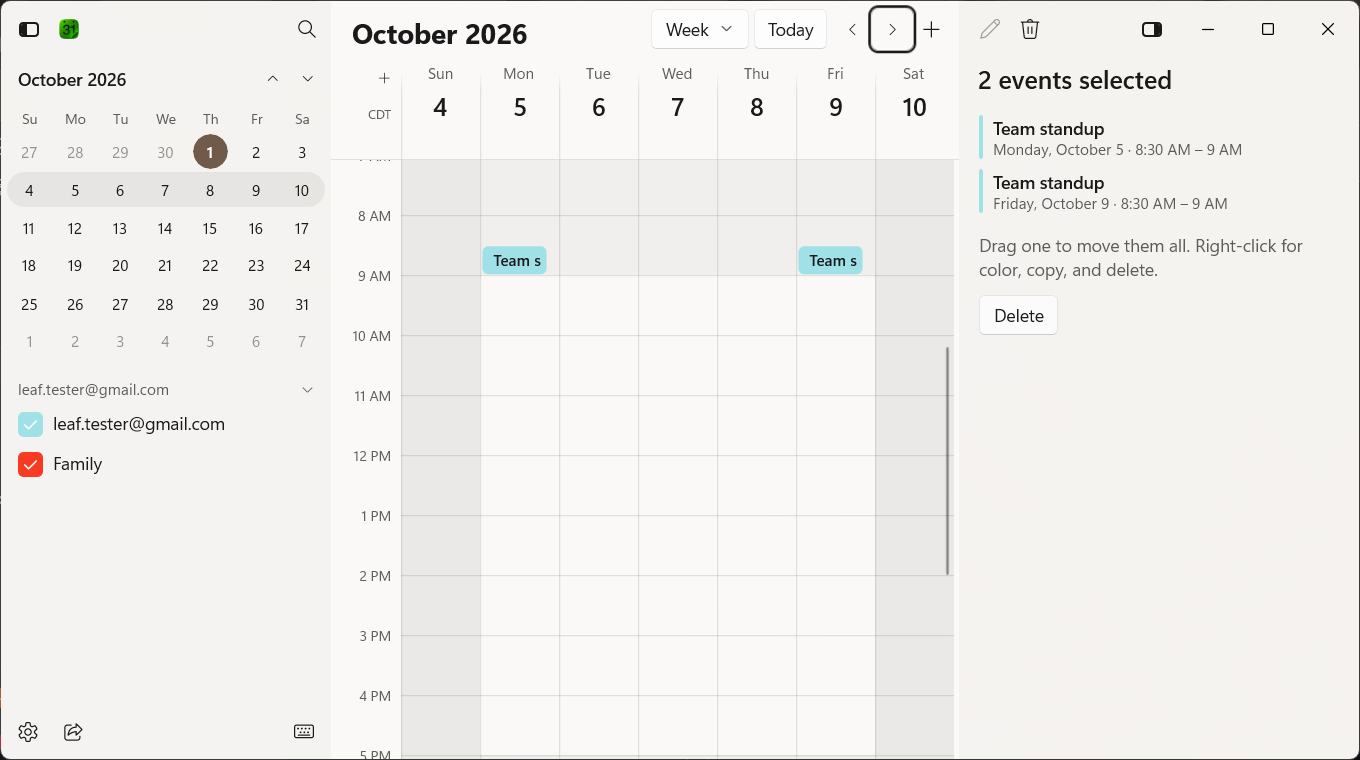
With several events selected, the right panel lists them. Drag one to move them all, or right-click for color, copy, and delete.
In the month view, a box selects every event on the days it covers.
Copy, cut, and paste
| Keys | What it does |
|---|---|
Ctrl+C | Copy the selected events |
Ctrl+X | Cut the selected events |
Ctrl+V | Paste them at the time you clicked (or the next quarter hour), keeping their spacing |
Delete
Select one or more events and press Delete, or click the trash button in the details panel. Guests get a cancellation email. Press Ctrl+Shift+Delete to delete without emailing anyone.
Undo a delete
Right after a delete, a notice with Undo shows at the bottom of the calendar. Click it, or press Ctrl+Z, to bring the event back.
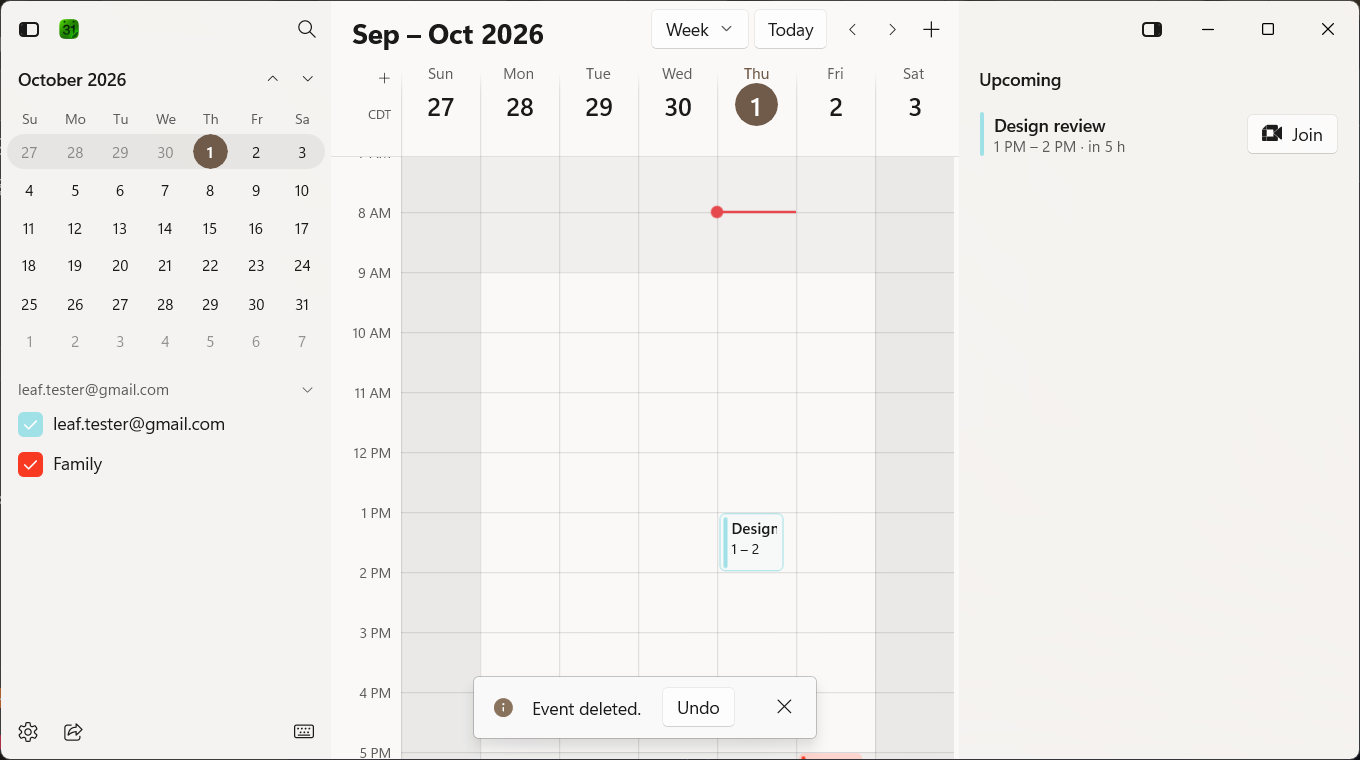
Ctrl+Z brings back any event you deleted since you opened Leaf Calendar. If the delete already reached Google, Leaf Calendar quietly makes the event again (without emailing anyone), so guests’ replies start over.