 Leaf Calendar
Offline and sync
Leaf Calendar keeps a copy of your calendar on your PC. That’s why it opens instantly and keeps working without internet.
How syncing works
Leaf Calendar checks Google for changes on its own:
- Every 15 seconds while its window or the tray flyout is open.
- Every minute while it waits in the tray.
- Every 5 minutes in the tray when Windows is on Energy saver or you’re on a metered connection, to save battery and data.
- Right away when you open the window, wake your PC, or get back online.
Want the latest right now? Press Ctrl+R or F5, or choose Sync now from the tray menu, the command menu, or Settings › Accounts.
Working offline
Everything works offline. Create, change, move, and delete events as usual. Your changes show right away and wait in line on your PC. When you’re back online, Leaf Calendar sends them to Google in the order you made them.
Google Meet links you add offline are created once you’re back online.
Your changes are never thrown away. If Google can’t take one right now, Leaf Calendar waits and tries again, waiting a little longer each time (up to 15 minutes). Sync now tries again right away.
The sync status icon
An icon in the title bar shows up only when something needs your attention. Hover over it for details.
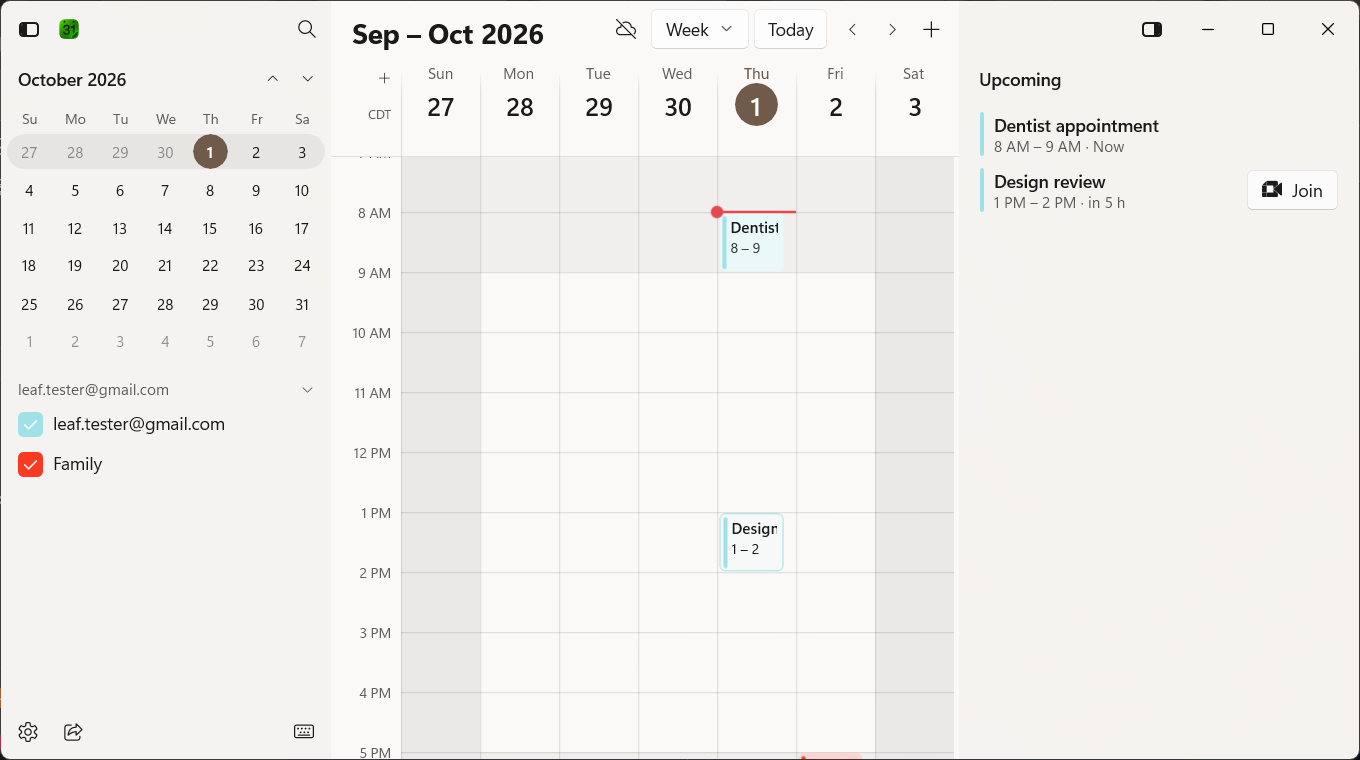
It shows, in this order of importance:
- A change needs your review (see below).
- Offline: Leaf Calendar couldn’t reach Google 3 times in a row.
- Changes waiting: edits that haven’t reached Google yet.
When a change needs your review
Sometimes an event changes in two places at once. For example, you move a meeting in Leaf Calendar while offline, and someone else moves it on Google. Leaf Calendar won’t guess which one wins. Instead, it shows a notification (“1 change needs your review”) and a badge in the app.
Open it to see both versions side by side, with the differences highlighted, then pick:
- Keep mine sends your version to Google.
- Keep Google’s throws your change away.
- Decide later leaves it for now.
Only that one event waits. Your other changes keep sending.
If the event was deleted on Google, the review offers to keep yours (saved on Google as a new event) or Discard mine.
If Google refuses a change for good (for example, you no longer have access to that calendar), Leaf Calendar undoes it on your PC and tells you.